
Log Analysis Tools > LogonTracer
Tool to investigate malicious Windows logon by visualizing and analyzing Windows event log.



Concept
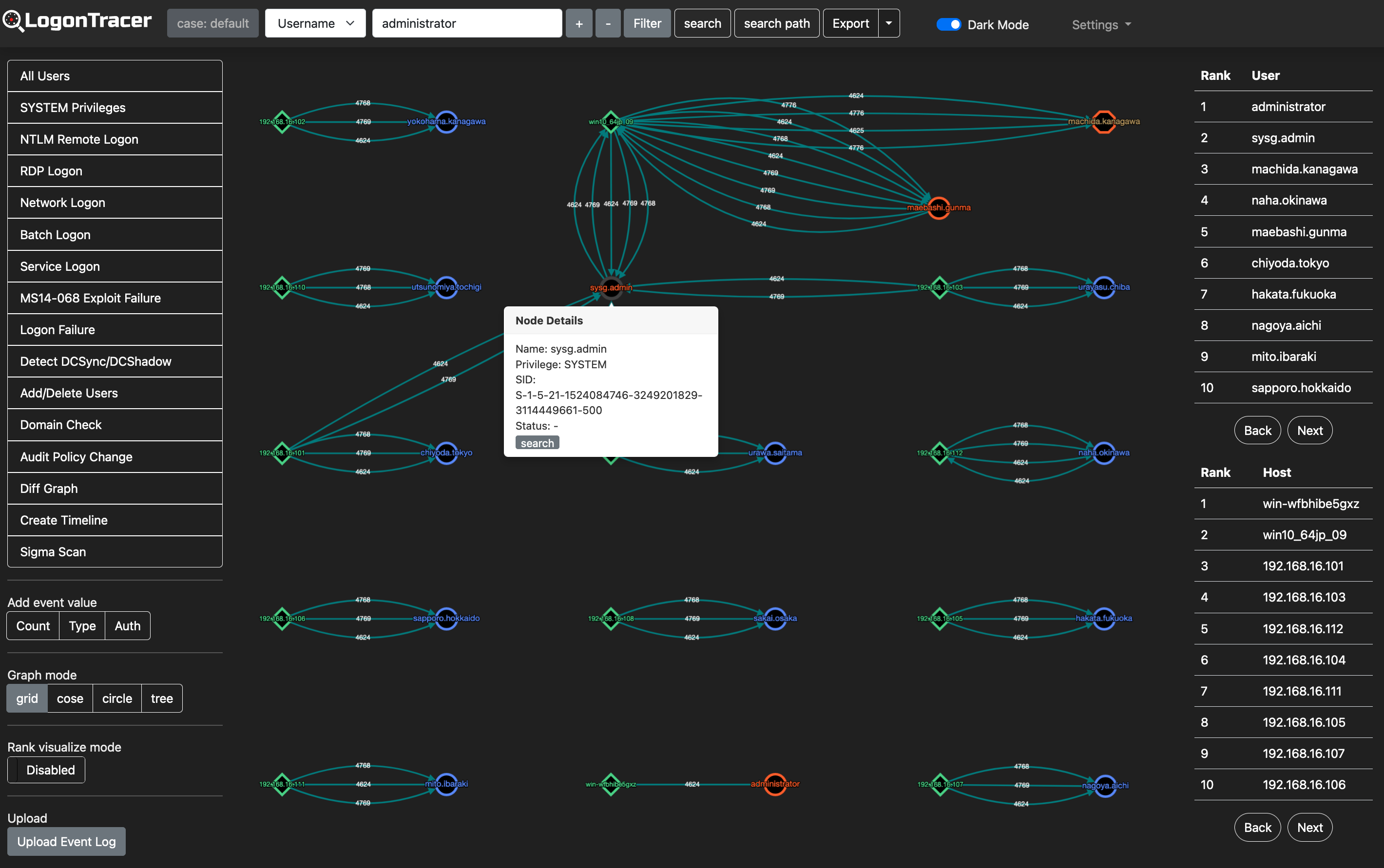
LogonTracer v2 is a tool to investigate malicious logon by visualizing and analyzing Windows Active Directory event logs. This tool associates a host name (or an IP address) and account name found in logon-related events and displays it as a graph. This way, it is possible to see in which account login attempt occurs and which host is used.
This tool can visualize the following event IDs related to Windows logon.
| Event ID | Description |
|---|---|
| 4624 | Successful logon |
| 4625 | Logon failure |
| 4662 | An operation was performed on an object |
| 4672 | Assign special privileges |
| 4719 | System audit policy was changed |
| 4720 | A user account was created |
| 4726 | A user account was deleted |
| 4728 / 4732 / 4756 | A member was added to a security-enabled group |
| 4729 / 4733 / 4757 | A member was removed from a security-enabled group |
| 4768 | Kerberos Authentication (TGT Request) |
| 4769 | Kerberos Service Ticket (ST Request) |
| 4776 | NTLM Authentication |
| 5137 | A directory service object was created |
| 5141 | A directory service object was deleted |
More details are described in the following documents:
- Visualise Event Logs to Identify Compromised Accounts - LogonTracer -
- イベントログを可視化して不正使用されたアカウントを調査 (Japanese)
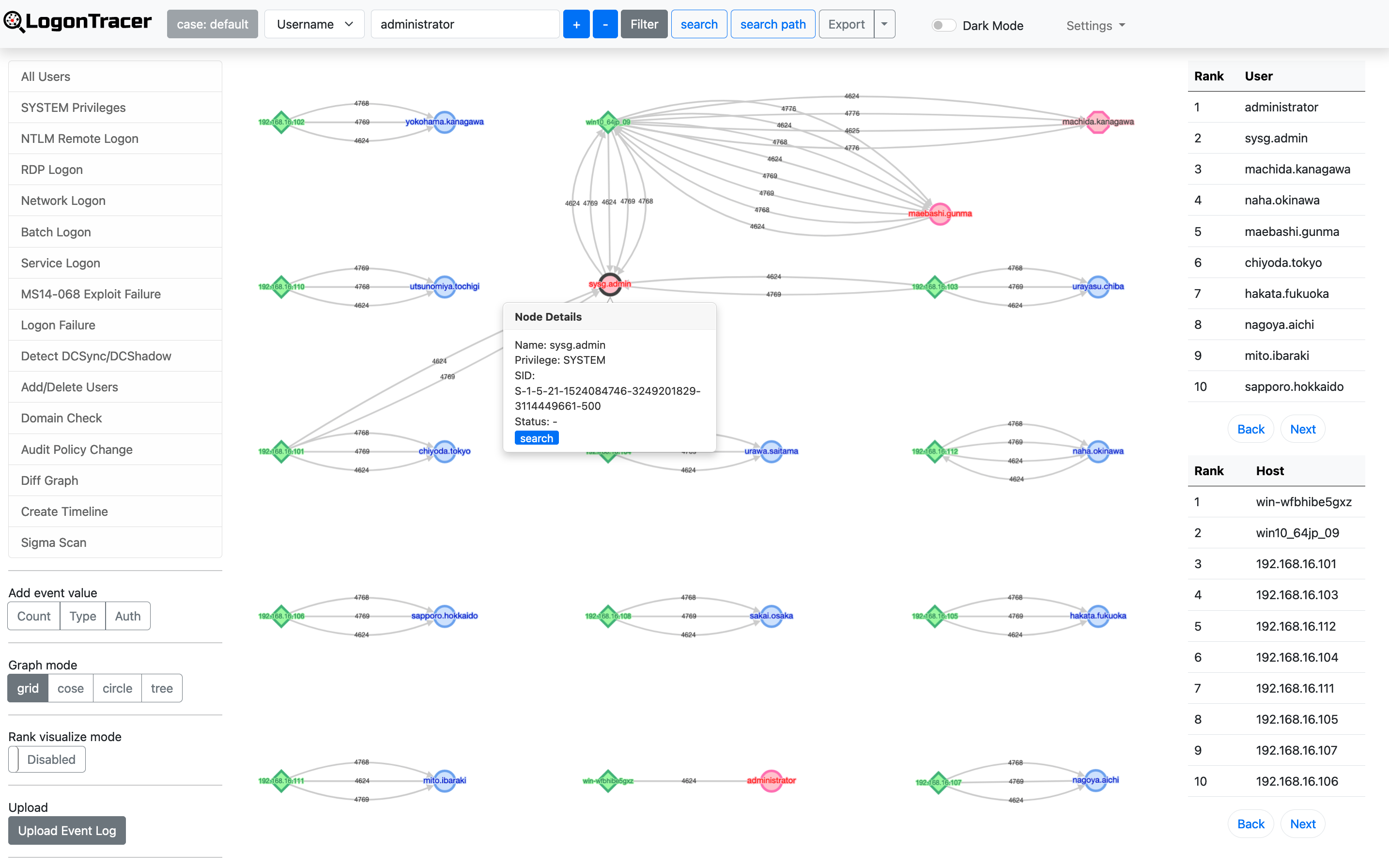
What's New in Version 2.0
AI-Powered Security Analysis
LogonTracer v2.0 integrates an AI analysis engine using OpenAI GPT models to provide intelligent threat detection beyond traditional rule-based approaches.
- Security Pattern Analysis — Automatically interprets graph query results and generates risk assessments with MITRE ATT&CK tactic mapping
- Autonomous LLM Agent — An iterative AI agent that autonomously generates and executes Cypher queries against the Neo4j graph to discover threats without manual intervention
- AI-Generated Sigma Rules — Converts AI analysis findings into deployable Sigma detection rules
- Multi-language Support — AI responses can be generated in English, Japanese, or French
Sigma Rule Integration
- Bundled Sigma Rules — Includes the full SigmaHQ rule set for scanning EVTX files
- Sigma Scan on Upload — Optionally run Sigma rule scanning automatically during EVTX file upload
- Sigma Rescan API — Re-scan previously uploaded EVTX files with a specific Sigma rule folder via REST API
- Sigma Results View — Dedicated UI page displaying Sigma detection results in an interactive table
Additional Analysis
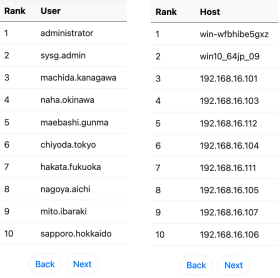
LogonTracer uses PageRank, Hidden Markov Model, and ChangeFinder to detect malicious hosts and accounts from event logs.
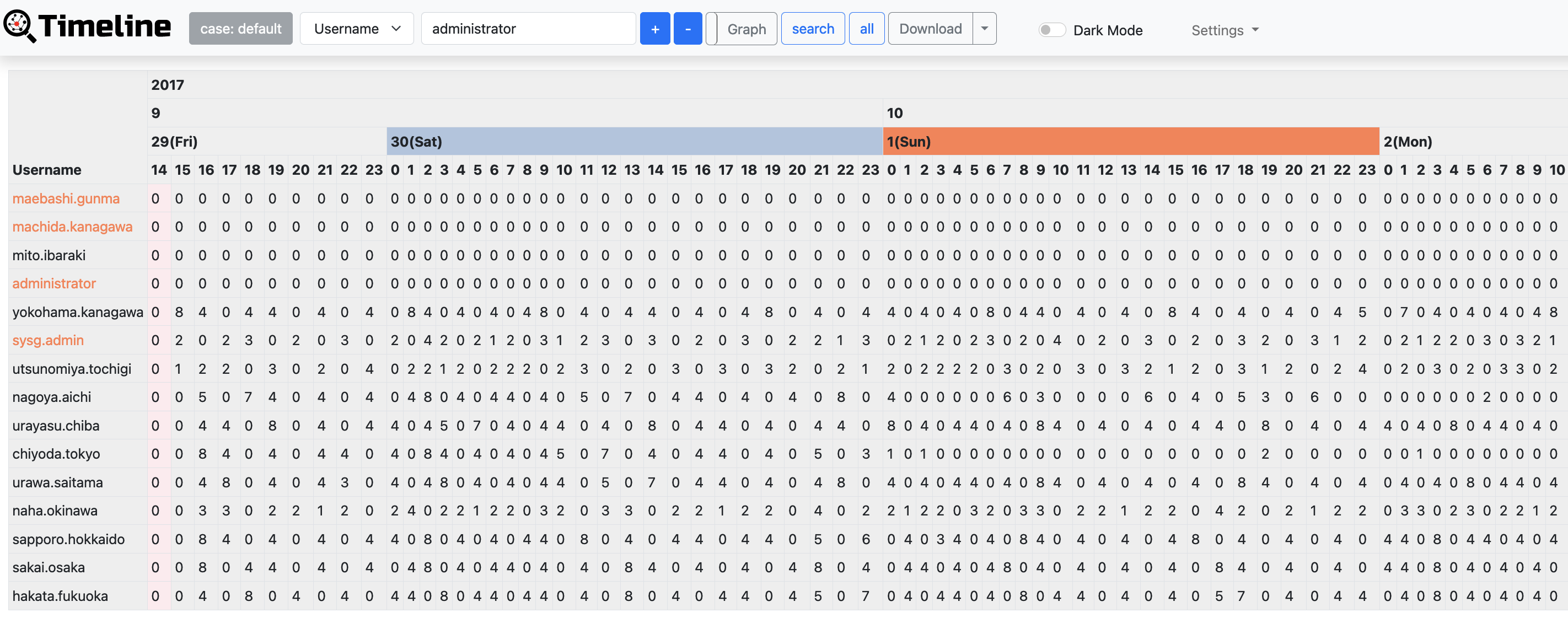
With LogonTracer, it is also possible to display event logs in chronological order.
Requirements
Python 3.9 or later (3.12 recommended)
Neo4j 5.x (Community or Enterprise)
OpenAI API key (optional — required only for AI analysis features)
Python modules
numpy
evtx
lxml
scipy
changefinder
flask
hmmlearn>=0.2.8
scikit-learn
elasticsearch-dsl>=7.0.0,<8.0.0
pyyaml
flask-sqlalchemy
flask-login
flask_wtf
flask-limiter
wtforms
GitPython
pysigma>=0.11.0
pysigma-backend-sqlite
openai>=1.0.0
aiohttp
neo4j
Installation
1. Clone the repository
git clone https://github.com/JPCERTCC/LogonTracer.git
cd LogonTracer
2. Install dependencies
pip3 install -r requirements.txt
3. Start Neo4j
Download and start Neo4j. Set the initial password and note the Bolt port (default: 7687).
4. Edit the configuration file
vi config/config.yml
Key settings:
settings:
  logontracer:
    WEB_PORT: "8080"
    default_user: "neo4j"       # Neo4j username for the default LogonTracer account
    default_password: "password" # Change this before first run

  neo4j:
    NEO4J_USER: "neo4j"
    NEO4J_PASSWORD: "password"   # Your Neo4j password
    NEO4J_SERVER: "localhost"
    WS_PORT: "7687"
5. Start the web application
python3 logontracer.py --run
Open your browser at http://localhost:8080.
Usage
Importing Event Logs
Import EVTX file(s)
python3 logontracer.py -e <path/to/Security.evtx> -z <UTC offset> -s <Neo4j server> -u <user> -p <password>
Import XML file(s)
python3 logontracer.py -x <path/to/event.xml> -z <UTC offset> -s <Neo4j server> -u <user> -p <password>
Import from Elasticsearch
python3 logontracer.py --es -s <Neo4j server> -u <user> -p <password> --es-server <ES host:port>
Import with Sigma scanning
Add the --sigma flag to run Sigma rule detection during import:
python3 logontracer.py -e <path/to/Security.evtx> -z 9 -s localhost -u neo4j -p password --sigma
Add additional logs (without deleting existing data)
python3 logontracer.py -e <path/to/Security.evtx> -z 9 -s localhost -u neo4j -p password --add
Web GUI Upload
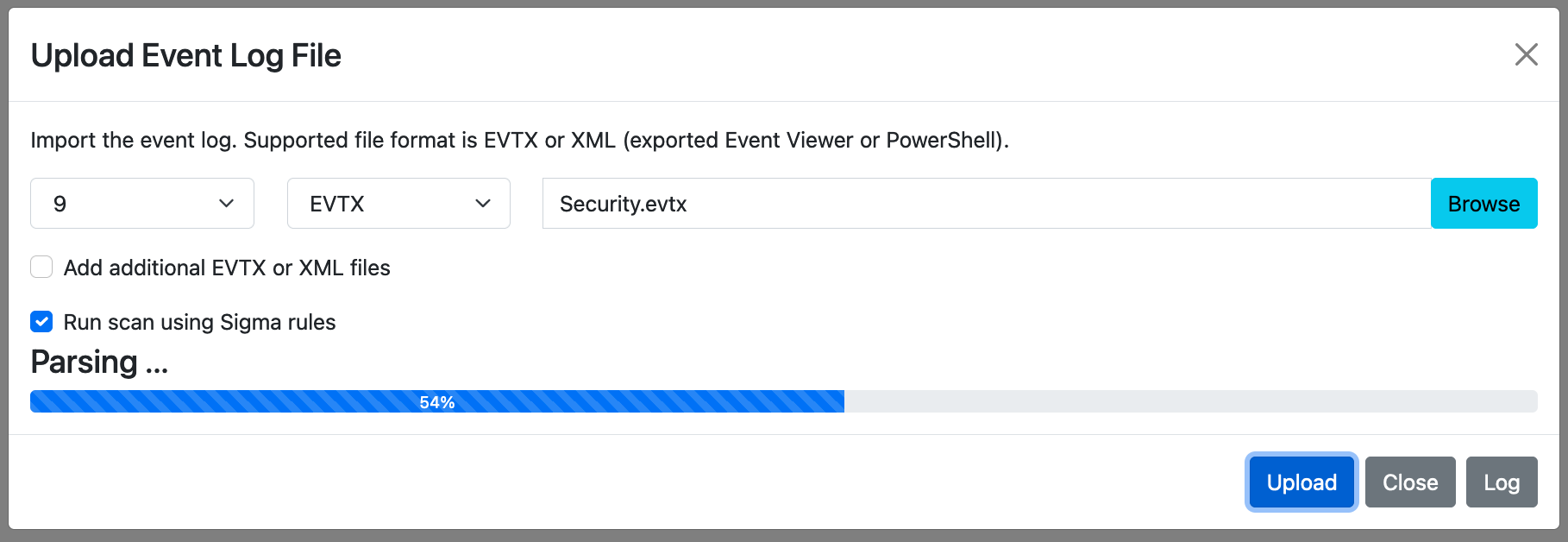
After starting the web application, click Upload Event Log in the left sidebar. You can:
- Select one or more EVTX or XML files
- Choose the UTC offset for the log timezone
- Enable Add additional files to append data without clearing the database
- Enable Run scan using Sigma rules to run Sigma detection automatically after import
Sigma Scan Results
After uploading with Sigma scanning enabled, or after triggering a rescan via the API, click Sigma Scan Results in the sidebar to view findings.
AI Analysis (v2.0)
Setup
- Go to Settings → AI Settings in the navigation bar
- Enable AI analysis and enter your OpenAI API key
- Select the GPT model and preferred response language
Using AI Analysis
- Click AI Analysis in the top navigation to run the autonomous LLM agent
- The agent iteratively generates Cypher queries, executes them against the Neo4j database, and reports discovered threats
- Click AI History to view the last analysis result
- From the AI analysis result panel, click Generate Sigma Rules to convert findings into Sigma detection rules
Web Application Screenshots
Login
Main Graph View
Dark Mode
Timeline
Navigation Bar

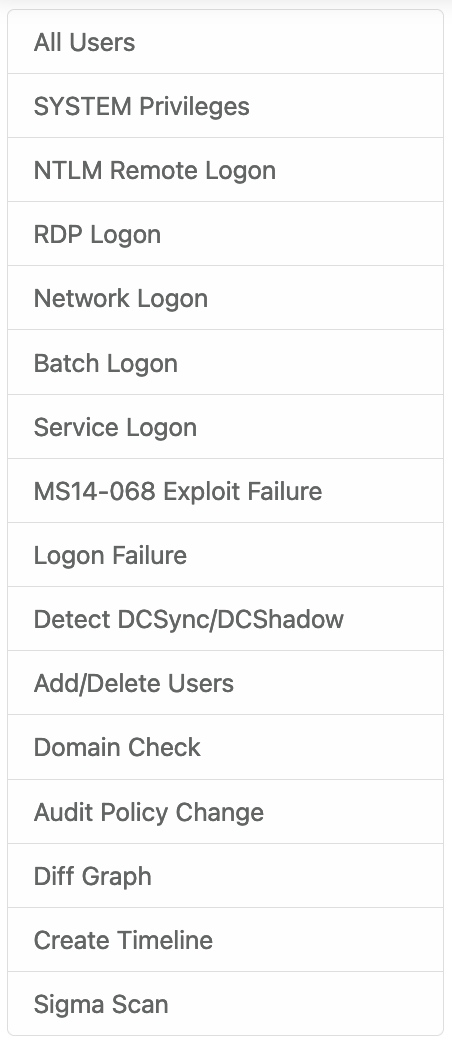
Side Bar
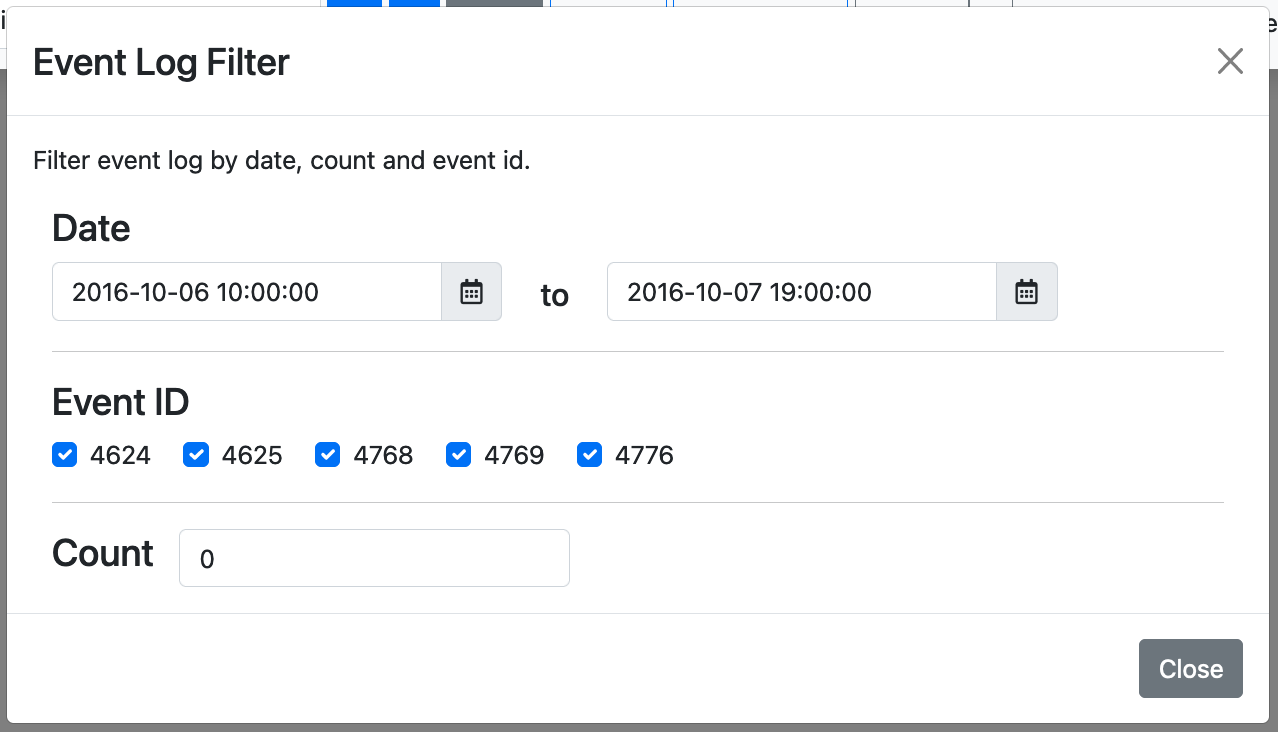
Filter Panel
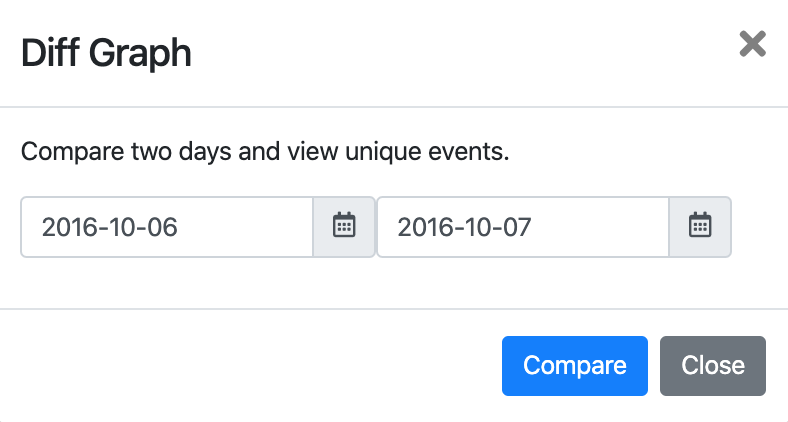
Diff Graph
Case Management (Neo4j Enterprise)
With Neo4j Enterprise Edition, LogonTracer supports multiple independent investigation cases — each stored in a separate Neo4j database.
- Add New Case — Create a new database for a new investigation
- Delete Case — Remove a case database
- Add/Delete Access to Case — Grant or revoke per-user access to specific cases
- Change Case — Switch the active case in the current session
Docker
Using Docker (single container)
docker run \
  --detach \
  --publish=7474:7474 --publish=7687:7687 --publish=8080:8080 \
  -e LTHOSTNAME=<IP Address> \
  jpcertcc/docker-logontracer
Using Docker Compose
cd docker-compose
docker compose build
docker compose up -d
Using Docker Compose with HTTPS (nginx)
cd docker-compose-with-nginx
docker compose build
docker compose up -d
Using Docker Compose with Elastic Stack
cd docker-compose-with-elasticstack
docker compose build
docker compose up -d
Command Line Options
| Option | Description |
|---|---|
-r, --run |
Start the web application |
-o PORT |
Web application port (default: 8080) |
--host HOST |
Bind address (default: 0.0.0.0) |
-e EVTX [...] |
Import EVTX file(s) |
-x XML [...] |
Import XML event log file(s) |
-s SERVER |
Neo4j server address (default: localhost) |
-u USER |
Neo4j username (default: neo4j) |
-p PASSWORD |
Neo4j password |
--wsport PORT |
Neo4j Bolt port (default: 7687) |
-z UTC |
Timezone offset (e.g. 9 for JST) |
-f DATE |
Parse logs from this datetime (e.g. 2024-01-01T00:00:00) |
-t DATE |
Parse logs to this datetime |
--add |
Append data without clearing the database |
--delete |
Clear the database before importing |
--sigma |
Run Sigma rule scanning during import |
--sigma-only |
Run Sigma scan only (no Neo4j processing) |
--sigma-rules PATH |
Path to Sigma rules folder (default: sigma) |
--es |
Import data from Elasticsearch |
--postes |
Post analysis results to Elasticsearch |
--es-server HOST:PORT |
Elasticsearch server |
--es-index INDEX |
Elasticsearch index (default: winlogbeat-*) |
--es-prefix PREFIX |
Elasticsearch event prefix (default: winlog) |
--case NAME |
Case name for Neo4j Enterprise multi-database mode |
-c FILE |
Configuration file path (default: config/config.yml) |
--create_user USER |
Create a new Neo4j user |
--create_password PASS |
Password for the new Neo4j user |
--role ROLE |
Role for the new user (admin, architect, reader) |
--delete_user USER |
Delete a Neo4j user |
-l, --learn |
Run machine learning analysis (Hidden Markov Model) |
Demonstration
The following YouTube video shows how to use LogonTracer.
Documentation
For more details, please check the LogonTracer wiki.