SuperCmd
Open-source launcher with Raycast-compatible extensions, voice workflows, text-to-speech, memory, and AI actions.

SuperCmd
Raycast + Wispr Flow + Speechify + Memory + AI




Open-source launcher for macOS with Raycast-compatible extensions, voice workflows, and AI-native actions.
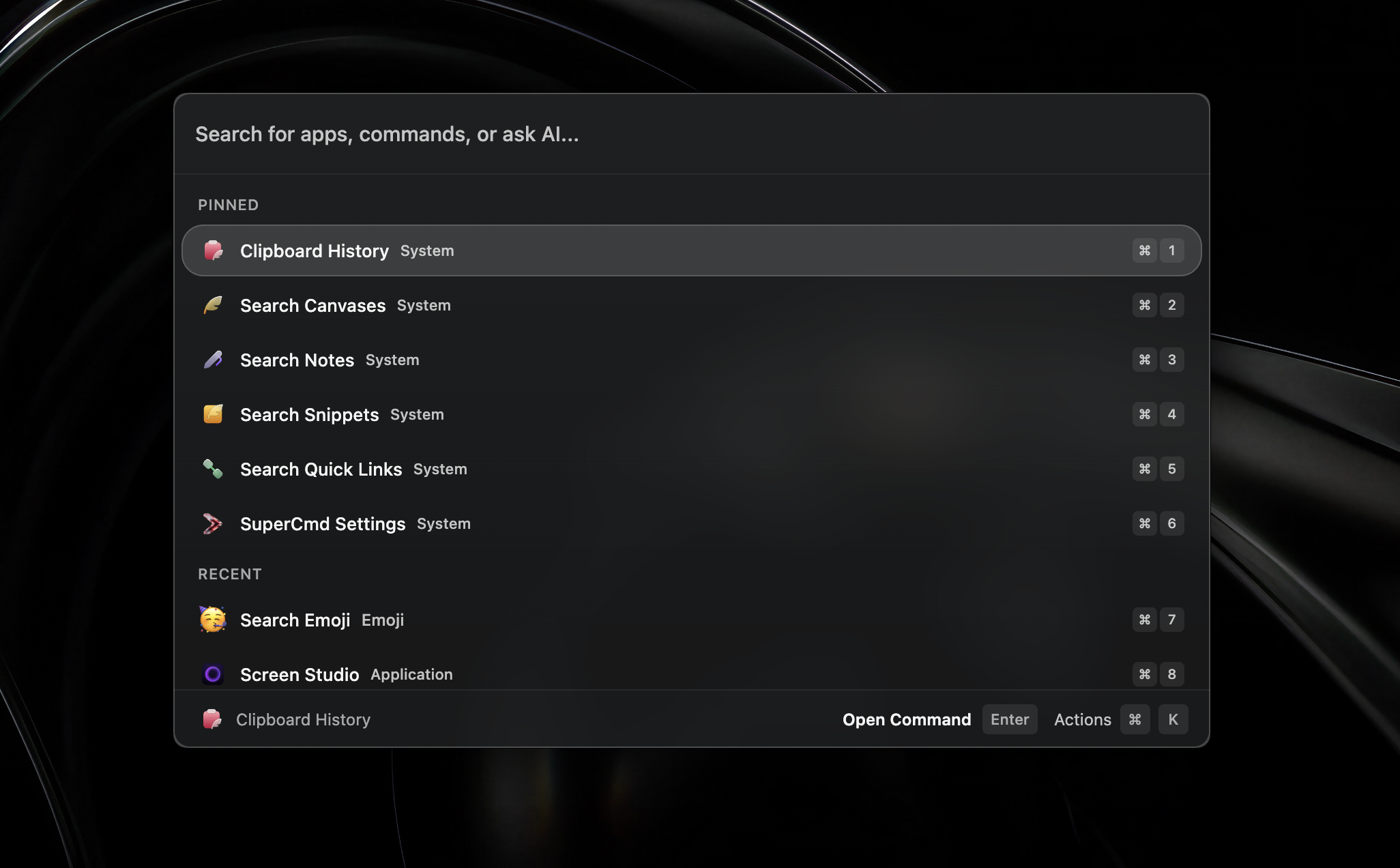
Open-source launcher for macOS: Raycast + Wispr Flow + Speechify + Memory + AI in one app.
SuperCmd gives you Raycast-style extension workflows, hold-to-speak dictation, natural text-to-speech, AI actions backed by configurable providers and memory, notes, canvas, clipboard history, snippet expansion, and window tiling — all from a single keyboard shortcut.
What It Is
SuperCmd is an Electron + React launcher that focuses on Raycast extension compatibility while remaining community-driven and open source. It ships a full @raycast/api and @raycast/utils compatibility shim so existing Raycast extensions work without modification. For anything that requires tight system integration — hotkeys, window management, speech recognition, clipboard, snippet injection — it drops into Swift and Objective-C to talk directly to macOS frameworks (ApplicationServices, EventKit, AVFoundation, Carbon) for native speed and reliability.
Key Features
- Raycast extension compatibility —
@raycast/apiand@raycast/utilsshims; install extensions directly from the Raycast store - AI cursor prompt — inline AI suggestions at your cursor position across any app
- AI chat — chat with configurable providers (OpenAI / Anthropic / Ollama / Gemini / OpenAI-compatible)
- Hold-to-speak dictation — Wispr Flow-style voice input; hold hotkey, speak, release to type (Whisper, Parakeet, or native macOS STT)
- Read aloud — Speechify-style TTS for selected text (Edge TTS or ElevenLabs)
- Clipboard history — full clipboard manager with Cmd+1–9 quick-paste shortcuts
- Snippet expansion — create and trigger text snippets with keyboard shortcuts
- Quick links — bookmark URLs and launch them from the launcher
- Notes — lightweight in-launcher note-taking
- Canvas — freeform drawing and diagramming
- File search — fast indexed file search with protected-roots support
- Calendar/schedule — view today's events from EventKit
- Window tiling — 24 window placement commands (halves, thirds, quarters, center, fill, 10px nudge/resize)
- Hyper key — remap Caps Lock to a custom modifier with configurable behavior
- System commands — Sleep, Restart, Lock Screen, Log Out, Close All Apps, Empty Trash
- Script command support — run custom shell/Python/Ruby scripts from the launcher
- Auto-updates — built-in updater via GitHub Releases; check manually or install on next launch
- Memory-aware AI — Supermemory integration
- Glassy UI — liquid-glass morphism with custom background image, blur, and opacity controls
- Localization — English, Chinese (Simplified/Traditional), Japanese, Korean, French, German, Spanish, Russian
Tech Stack
- Electron 40 (main process)
- React 18 + Vite 5 (renderer)
- TypeScript 5.3
- Tailwind CSS 3
- Swift binaries for macOS-native integrations (11 Swift helpers + fast-paste native module)
Project Structure
src/main/        Electron main process, IPC, extension execution, AI, settings
src/renderer/    React UI + Raycast compatibility layer + built-in feature views
src/native/      Swift native helpers (11 binaries)
extensions/      Installed/managed extension data
dist/            Build output
Key source files
| Path | Purpose |
|---|---|
src/main/main.ts |
Entry point — IPC handlers, window management, global shortcuts |
src/main/preload.ts |
contextBridge — exposes window.electron API to renderer |
src/main/commands.ts |
App/extension/script discovery; getAvailableCommands() with cache |
src/main/extension-runner.ts |
Extension execution engine (esbuild bundle + require shim) |
src/main/extension-registry.ts |
Extension catalog, install, uninstall, update |
src/main/ai-provider.ts |
AI streaming (OpenAI / Anthropic / Ollama / Gemini) via Node http/https |
src/main/settings-store.ts |
JSON settings persistence (AppSettings, cached in memory) |
src/renderer/src/App.tsx |
Root component — wires hooks and routes to views |
src/renderer/src/raycast-api/ |
@raycast/api + @raycast/utils compatibility runtime |
src/renderer/src/hooks/ |
Feature hooks — state and logic, no JSX |
src/renderer/src/views/ |
Full-screen view components — pure UI |
Native Swift helpers
| Binary | Purpose |
|---|---|
calendar-events |
EventKit calendar integration |
color-picker |
System color picker |
get-selected-text |
Extract selected text from frontmost app |
hotkey-hold-monitor |
Hold-to-speak hotkey detection |
hyper-key-monitor |
Caps Lock → Hyper Key remapping |
input-monitoring-request |
Request Input Monitoring permission |
microphone-access |
Microphone permission checks |
snippet-expander |
Keyboard-triggered snippet expansion |
speech-recognizer |
macOS native speech recognition (STT) |
whisper-transcriber |
OpenAI Whisper STT integration |
window-adjust |
Window tiling and resizing (ApplicationServices) |
fast-paste-addon/ |
Node.js native module for fast clipboard paste (Cmd+1–9) |
parakeet-transcriber/ |
Swift package — on-device STT via swift-transformers |
Install
Download the app
Download the latest .dmg from the Releases page:
- Apple Silicon (M1/M2/M3/M4):
SuperCmd-x.x.x-arm64.dmg - Intel Mac:
SuperCmd-x.x.x.dmg
Open the .dmg, drag SuperCmd to your Applications folder, and launch it.
Note: On first launch, macOS may warn that the app is from an unidentified developer. Go to System Settings → Privacy & Security and click "Open Anyway".
macOS Permissions
SuperCmd needs the following permissions. The app will prompt you on first use, or you can enable them manually in System Settings → Privacy & Security:
| Permission | Why | Required for |
|---|---|---|
| Accessibility | Window management, keystroke injection | Window tiling, snippet expansion |
| Input Monitoring | Global hotkey detection (hold-to-speak, launcher shortcut, hyper key) | Core launcher functionality |
| Microphone | Voice dictation (speech-to-text) | Optional — only if using voice features |
| Automation (AppleScript) | Selected text capture, system automation | Extension actions |
| Calendars | Reading today's events | Optional — only if using schedule feature |
You may need to restart the app after granting permissions.
Auto-updates
SuperCmd includes a built-in auto-updater backed by GitHub Releases. You can check for updates manually by searching "Check for Updates" in the launcher, or install a downloaded update on next launch.
Development Setup
Prerequisites
- macOS (required — native Swift modules won't compile on Linux/Windows)
- Node.js 22+ — check with
node -v - npm — comes with Node.js
- Xcode Command Line Tools — required for
swiftc(Swift compiler) - Homebrew — used at runtime to resolve
gitandnpmfor extension installation
1. Install system dependencies
If you don't have Xcode Command Line Tools:
xcode-select --install
Verify Swift is available:
swiftc --version
If you don't have Homebrew:
/bin/bash -c "$(curl -fsSL https://raw.githubusercontent.com/Homebrew/install/HEAD/install.sh)"
2. Clone and install
git clone https://github.com/SuperCmdLabs/SuperCmd.git
cd SuperCmd
npm install
3. Build native modules
The dev script does not compile the Swift native helpers — build them once before your first run:
npm run build:native
This compiles all Swift binaries and native Node modules into dist/native/.
4. Run in development mode
npm run dev
This starts TypeScript watch for the main process, the Vite dev server for the renderer, and Electron in development mode.
5. Build for production
npm run build
Runs build:main + build:renderer + build:native in sequence.
6. Package the app
npm run package
Output artifacts are generated under out/.
Useful Commands
npm run dev              # Start local development (watch + Vite + Electron)
npm run build            # Build main, renderer, and native modules
npm run build:main       # Compile Electron main process TypeScript
npm run build:renderer   # Build renderer with Vite
npm run build:native     # Compile Swift helpers and native modules
npm run package          # Build and package app with electron-builder
npm run package:unsigned # Build unsigned package for local testing
npm run check:i18n       # Check internationalization strings
Troubleshooting
| Problem | Solution |
|---|---|
swiftc: command not found |
Run xcode-select --install and restart your terminal |
npm install fails on native modules |
Ensure Xcode CLT is installed and up to date: softwareupdate --install -a |
| App launches but hotkeys don't work | Grant Input Monitoring permission (not just Accessibility) and restart the app |
| Window management doesn't work | Grant Accessibility permission — window-adjust.swift checks AXIsProcessTrusted() |
| Extensions fail to install | Verify Homebrew is installed (brew --version) — SuperCmd needs brew-resolved git to clone extensions |
node-gyp build errors |
Check Node.js version (node -v) — requires 22+. Try deleting node_modules and re-running npm install |
| Apple Silicon (M1/M2/M3) issues | Ensure you're running the arm64 version of Node.js, not the x64 version via Rosetta |
Native features missing after npm run dev |
Run npm run build:native first — the dev script doesn't compile Swift binaries |
| Snippet expansion not working | Grant Accessibility permission; snippet-expander uses CGEventPost for keystroke injection |
| Whisper/Parakeet STT not working | Grant Microphone permission in System Settings → Privacy & Security |
AI + Memory Setup
Configure everything from the app UI:
- Launch SuperCmd.
- Open Settings (search "Settings" or use the gear icon).
- Go to the AI tab.
- Enable AI (
enabled = true). - Pick your default provider and add the required key(s).
Providers
| Provider | Setting | Notes |
|---|---|---|
| OpenAI | openaiApiKey |
GPT-4o, GPT-4o-mini, etc. |
| Anthropic (Claude) | anthropicApiKey |
Claude 3.5 Sonnet, Haiku, etc. |
| Google Gemini | geminiApiKey |
Gemini 1.5 Pro, Flash, etc. |
| Ollama | ollamaBaseUrl |
Default http://localhost:11434 — local models |
| OpenAI-compatible | openaiCompatibleBaseUrl + openaiCompatibleApiKey |
Any OpenAI-compatible endpoint |
Speech / voice keys
| Feature | Setting |
|---|---|
| ElevenLabs TTS | elevenlabsApiKey |
| Edge TTS (built-in) | No key required |
| Native macOS STT | No key required |
| Whisper STT | Runs locally — no key required |
| Parakeet STT | Runs locally via swift-transformers — no key required |
Memory keys
| Setting | Purpose |
|---|---|
supermemoryApiKey |
Supermemory API key |
supermemoryClient |
Supermemory client ID |
supermemoryBaseUrl |
Base URL (default: https://api.supermemory.ai) |
supermemoryLocalMode |
Use local Supermemory instance |
Where settings are stored
All app settings are persisted in:
~/Library/Application Support/SuperCmd/settings.json
Key fields:
{
  "globalShortcut": "Alt+Space",
  "openAtLogin": false,
  "uiStyle": "glassy",
  "fontSize": "medium",
  "appLanguage": "system",
  "ai": {
    "enabled": true,
    "provider": "openai",
    "openaiApiKey": "",
    "anthropicApiKey": "",
    "geminiApiKey": "",
    "ollamaBaseUrl": "http://localhost:11434",
    "elevenlabsApiKey": "",
    "supermemoryApiKey": "",
    "supermemoryBaseUrl": "https://api.supermemory.ai",
    "defaultModel": "openai-gpt-4o-mini",
    "speechToTextModel": "native",
    "textToSpeechModel": "edge-tts"
  }
}
OAuth tokens are stored separately in ~/Library/Application Support/SuperCmd/oauth-tokens.json.
Optional environment variable fallbacks
ELEVENLABS_API_KEYSUPERMEMORY_API_KEYSUPERMEMORY_CLIENTSUPERMEMORY_BASE_URLSUPERMEMORY_LOCAL
Privacy & Security
SuperCmd is open-source, so you can audit exactly what it does. The short version:
- Telemetry: one anonymous
app_startedevent via Aptabase. - AI prompts: sent directly from your device to your configured provider (OpenAI / Anthropic / Gemini / Ollama).
- Extension install/uninstall: reports extension name + an anonymous random machine ID to
api.supercmd.shfor download counts. - Voice data: STT runs fully on-device (Whisper, Parakeet, native macOS) — audio never leaves your machine.
See SECURITY.md for the full breakdown.
Contributing
We welcome contributions! See CONTRIBUTING.md for detailed guidelines on development setup, code architecture, PR conventions, and more.
Quick version:
- Fork the repo and create a feature branch.
- Make your changes, keeping Raycast extension compatibility in mind.
- Run
npm run buildto verify. - Open a PR with a clear description of what, why, and how you tested.
References
- Raycast API docs: https://developers.raycast.com/api-reference/
- Raycast extension store: https://www.raycast.com/store
Contributors
Thanks to everyone who has contributed to SuperCmd!