
Utilities > 1History
Command line interface to backup Firefox/Chrome/Safari history to one SQLite file
1History


All your history in one file.
1History backs up your browser history into a single local file and lets you explore it through a modern web UI — search, visualize, and manage everything from the browser, no extra CLI commands needed after the initial setup.

Features
- Modern web UI — dashboard, keyword search, in-browser backup
- Entirely offline, no cloud, no privacy concerns
- Supports Chrome / Firefox / Safari on macOS / Linux / Windows
- Single binary built in Rust 🦀
Screenshots
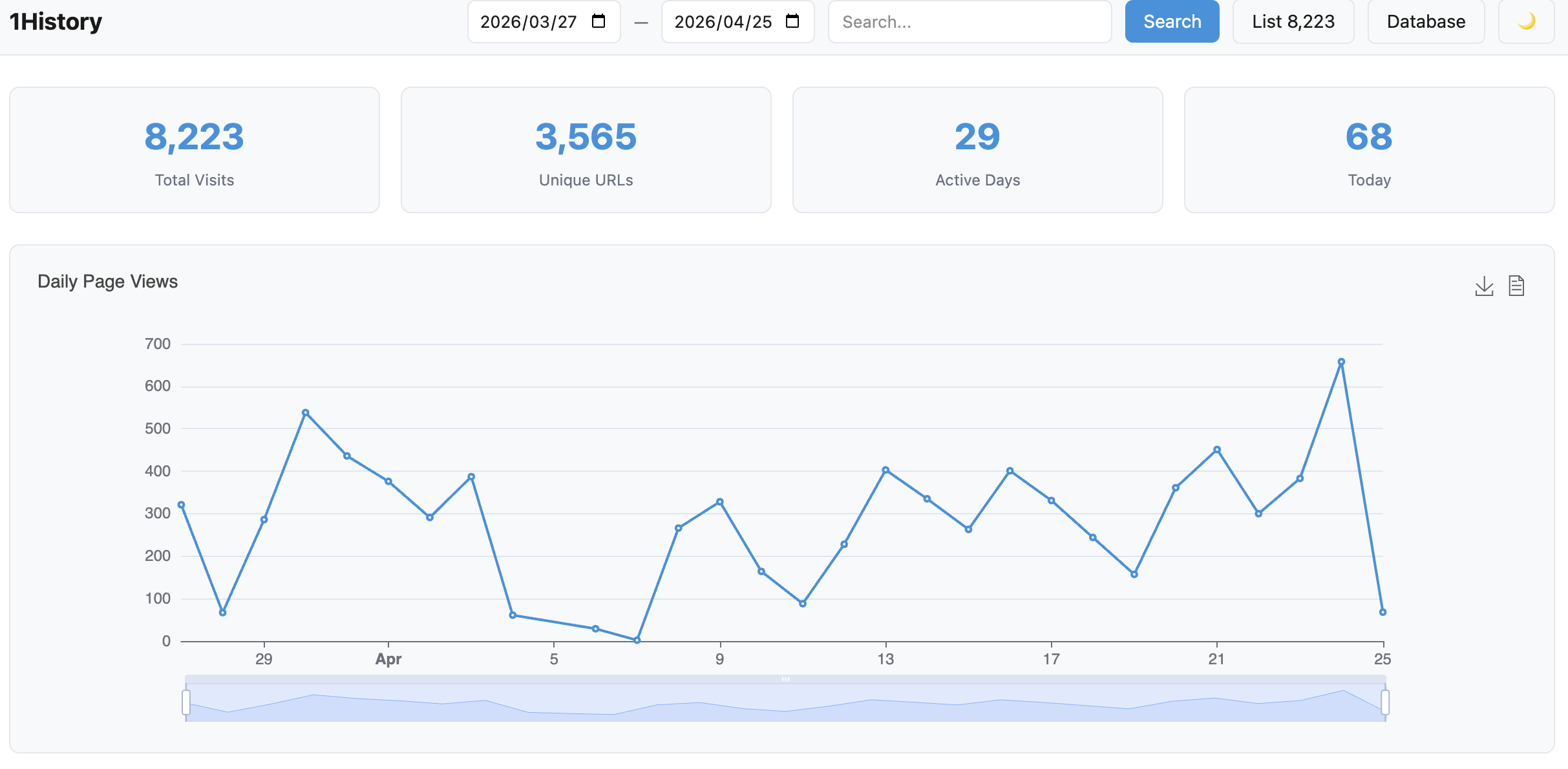
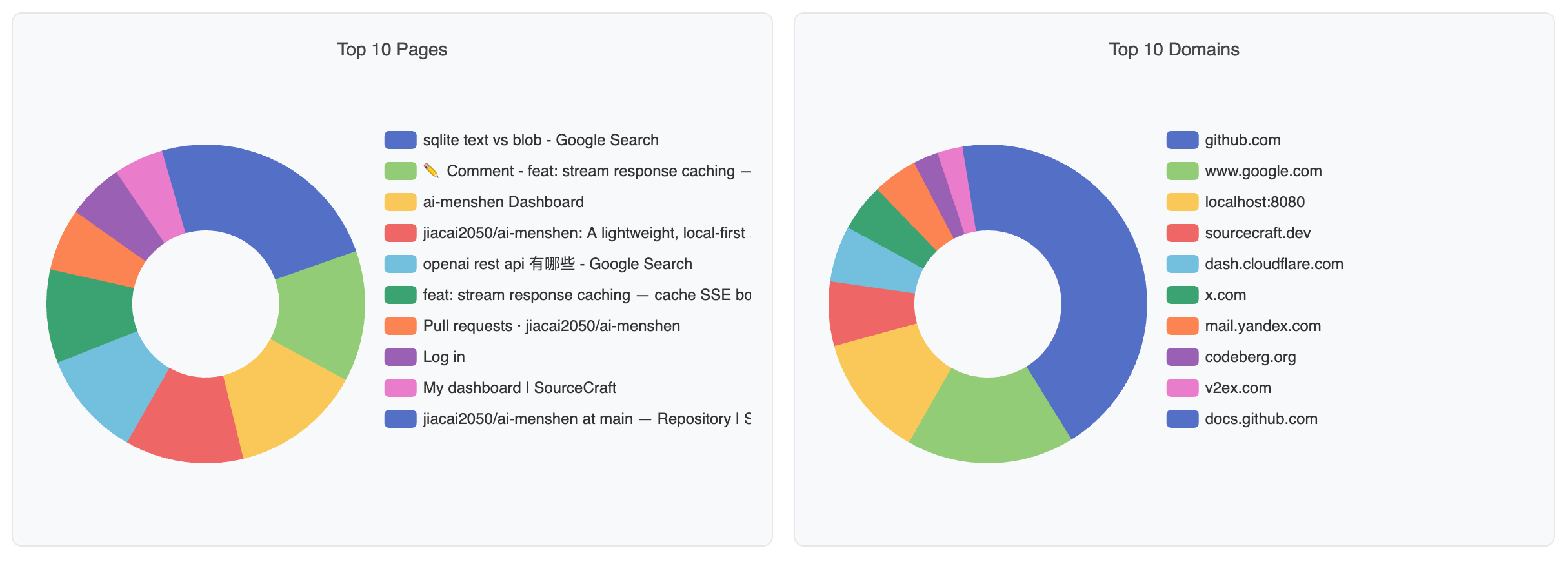
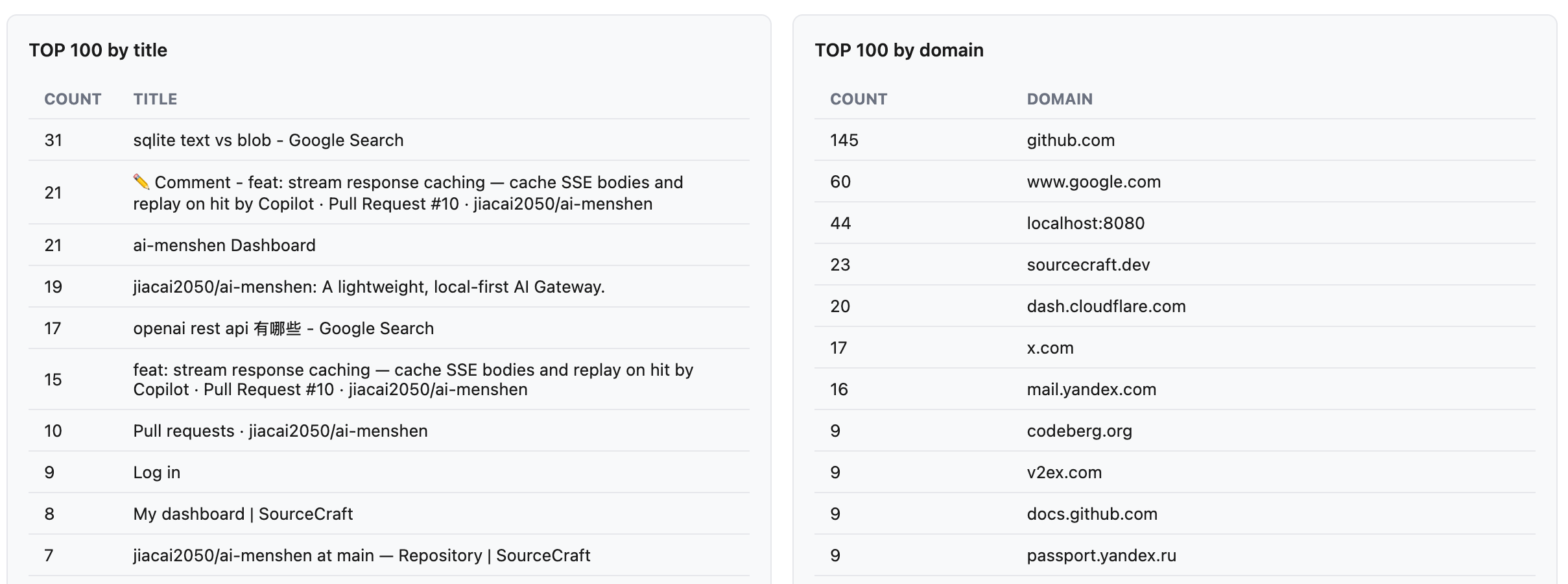
Dashboard
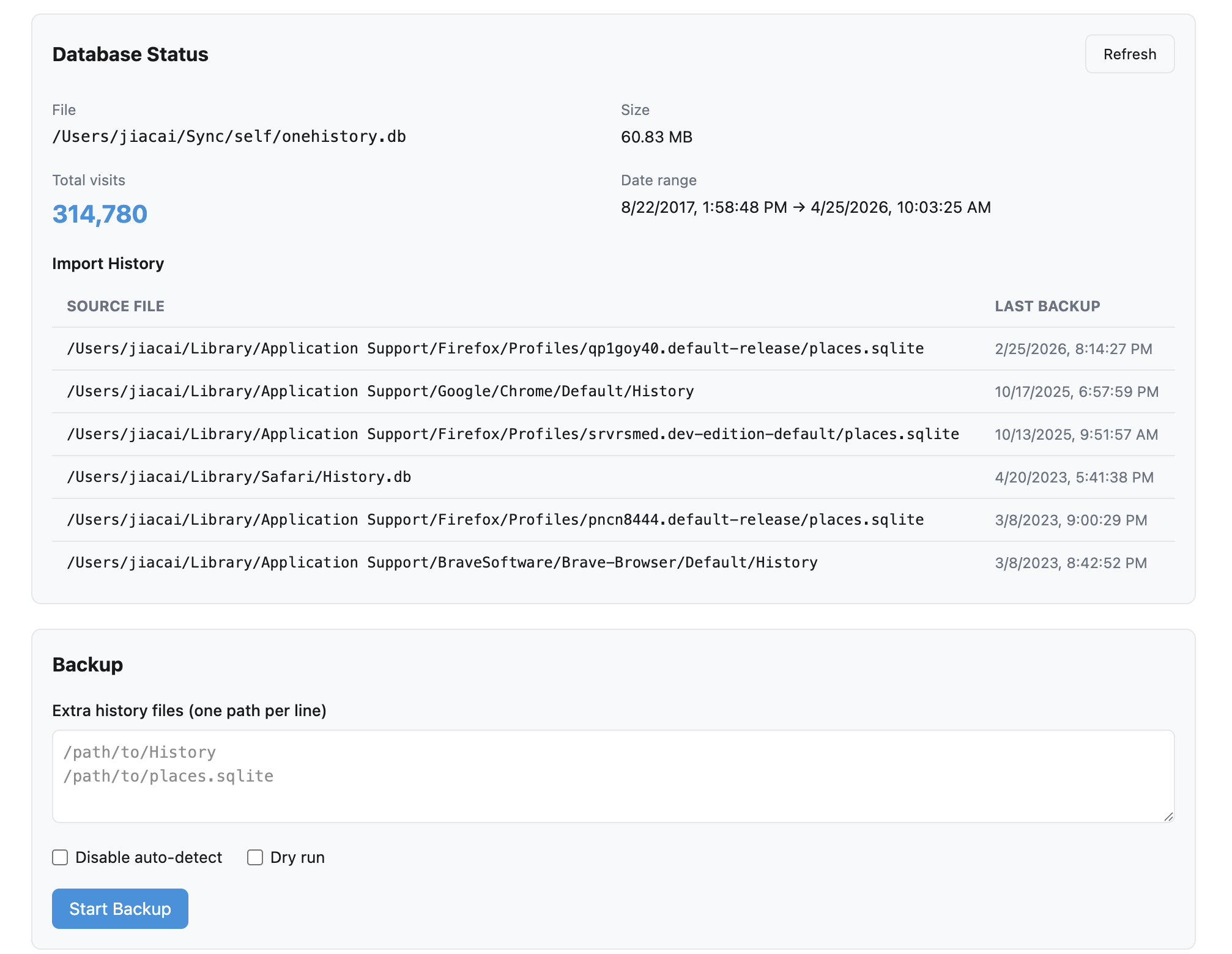
Database
Installation
Script (Linux / macOS)
Downloads a prebuilt binary from GitHub Releases and installs it to ~/.local/bin.
curl -fsSL https://raw.githubusercontent.com/localfirstapp/1History/main/install.sh | sh
To pass options, use sh -s -- after the pipe:
# Install a specific version
curl -fsSL https://raw.githubusercontent.com/localfirstapp/1History/main/install.sh | sh -s -- --version v0.4.0

# Install to a custom directory
curl -fsSL https://raw.githubusercontent.com/localfirstapp/1History/main/install.sh | sh -s -- --prefix /usr/local/bin

# Use a mirror for users in China
curl -fsSL https://raw.githubusercontent.com/localfirstapp/1History/main/install.sh | sh -s -- --china
Cargo
cargo install onehistory
Quick Start
# First backup — auto-detects all supported browsers
onehistory backup

# Start the web UI
onehistory serve
# Open http://127.0.0.1:9960
That's it. From this point on, everything can be done in the browser:
- Dashboard (
/) — KPI cards, daily page view chart, top pages and domains - Search (
/search) — keyword search across all history with instant filtering - Database (
/db) — trigger new backups, monitor progress, view import history
CLI Reference
The CLI is only needed for the initial setup and for scripting/automation use cases.
Usage: onehistory [OPTIONS] <COMMAND>

Commands:
  backup  Backup browser history to 1History
  serve   Start HTTP server to visualize history
  show    Show default history files on your computer
  export  Export history to CSV file
  help    Print this message or the help of the given subcommand(s)

Options:
  -d, --db-file <DB_FILE>  Database path [env: OH_DB_FILE=] [default: ~/onehistory.db]
  -v, --verbose            Enable verbose logging
  -h, --help               Print help
  -V, --version            Print version
backup
Usage: onehistory backup [OPTIONS]

Options:
  -f, --history-files <HISTORY_FILES>  SQLite file path of different browsers(History.db/places.sqlite...)
  -d, --disable-detect                 Disable auto detect history files
  -D, --dry-run                        Preview what would be imported without writing to the database
  -h, --help                           Print help
Auto-detection covers all major browsers. Use -f for non-standard locations:
| Browser | History file |
|---|---|
| Chrome | History |
| Firefox | places.sqlite |
| Safari | History.db |
# Import from custom paths; -d skips auto-detect (useful when browsers are open)
onehistory backup -d -f ~/some-dir/History -f ~/another-dir/places.sqlite
Development
Prerequisites
- Rust (stable)
- Node.js 18+
Setup
git clone https://github.com/localfirstapp/1History
cd 1History
cd frontend && npm install && cd ..
Build
The frontend must be built before cargo build — its output is embedded into the binary:
cd frontend && npm run build && cd ..
cargo build
Or simply:
make serve
Running locally with hot reload
# Terminal 1 — Rust server
cargo run -- serve

# Terminal 2 — Vite dev server (proxies API to :9960)
cd frontend && npm run dev
# Open http://localhost:5173
Testing
cargo test
cargo clippy --all-targets --all-features
cargo fmt -- --check
Changelog
See CHANGELOG
FAQ
Error code 5: The database file is locked
This happens when your browser is open during backup. Either close the browser first, or use -d -f to point at a copy of the history file outside the browser's profile directory.
LICENSE
Copyright (c) 2022 Jiacai Liu dev@liujiacai.net
1History is distributed under GPL-3.0 license.