
HubDocs
Swagger-like UI tool like Swagger, but for SignalR hubs — auto-discover your hubs, explore methods, invoke calls, and preview live client messages.
🧭 HubDocs is a developer-friendly UI tool like Swagger, but for SignalR hubs — auto-discover your hubs, explore methods, invoke calls, and preview live client messages.
https://hubdocs.mberrishdev.me/



HubDocs


HubDocs is a powerful tool for exploring and documenting SignalR hubs in your ASP.NET Core applications. It provides a beautiful, Swagger-like UI that automatically discovers and displays all your SignalR hubs and their methods.
Features
- 🔍 Automatic Hub Discovery: Automatically finds all SignalR hubs in your application
- 📝 Method Documentation: Shows method signatures, parameters, and return types
- 🎨 Beautiful UI: Swagger-inspired dark theme interface
- 🔌 Easy Integration: Simple setup with just a few lines of code
- 📦 NuGet Package: Easy to install and use in any ASP.NET Core project
- 📡 Live Client Logging: Displays real-time messages sent from server to clients via strongly-typed interfaces
🎥 Live Demo
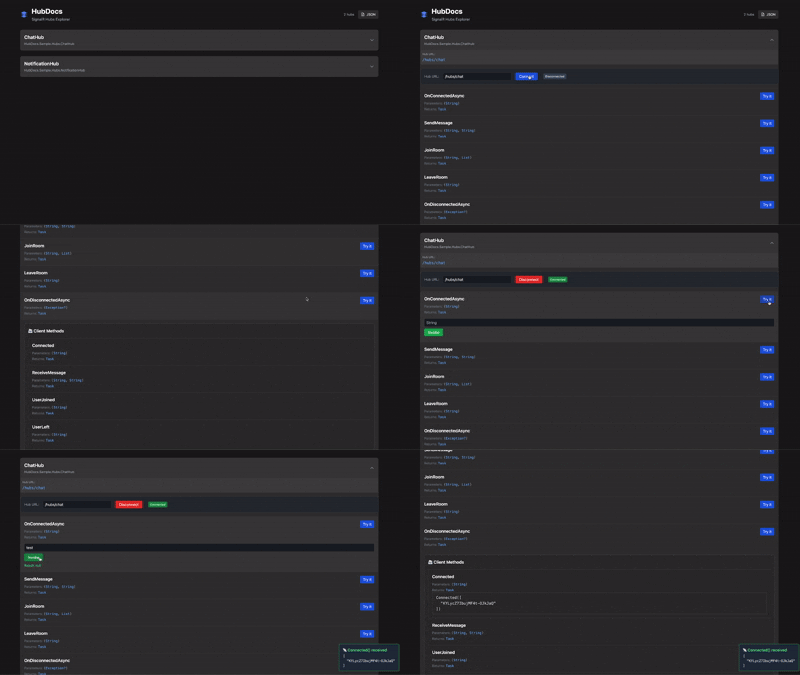
The HubDocs UI in action — exploring hubs, invoking methods, and seeing real-time client logs.
🖼️ Screenshots
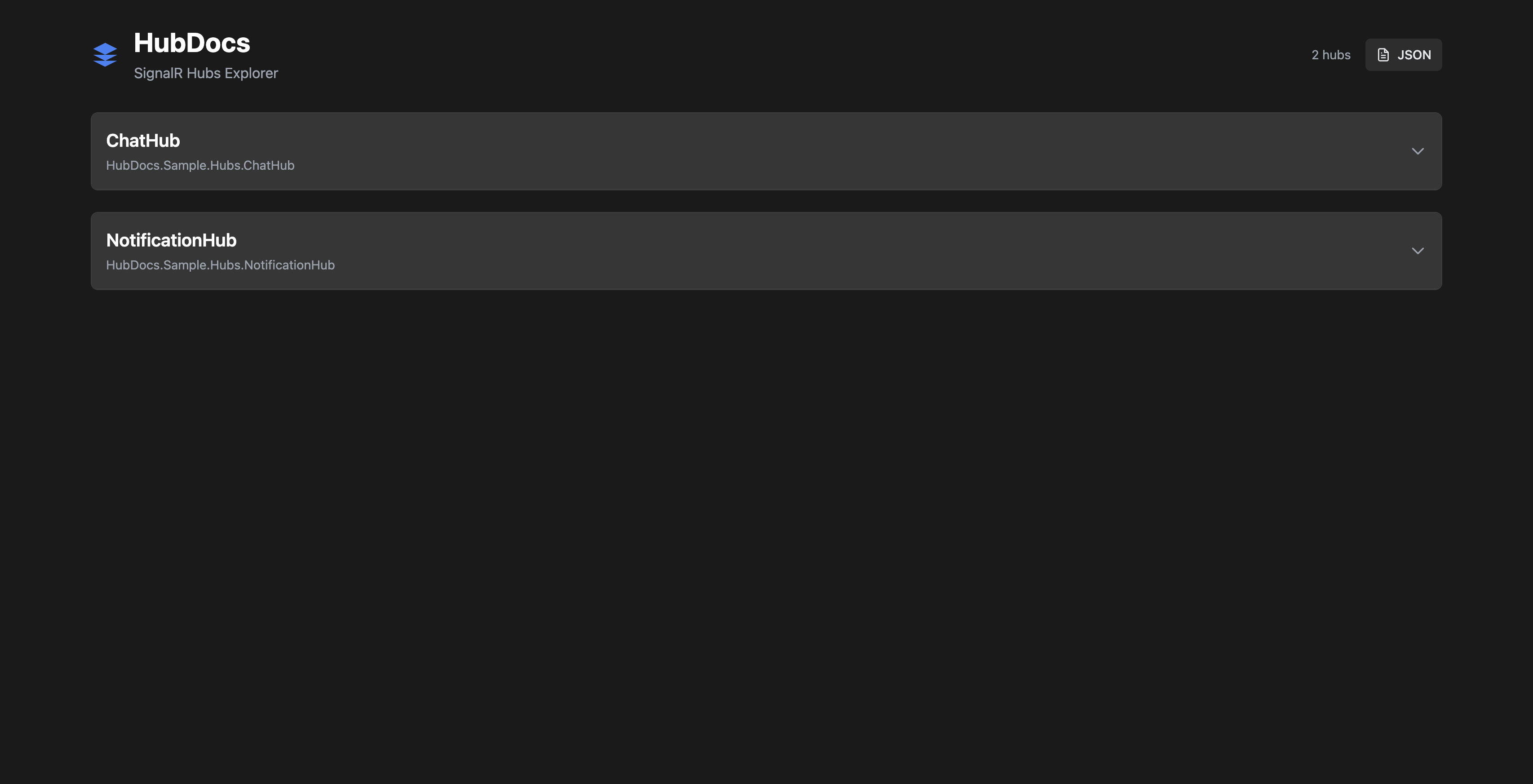
📌 SignalR Hub list
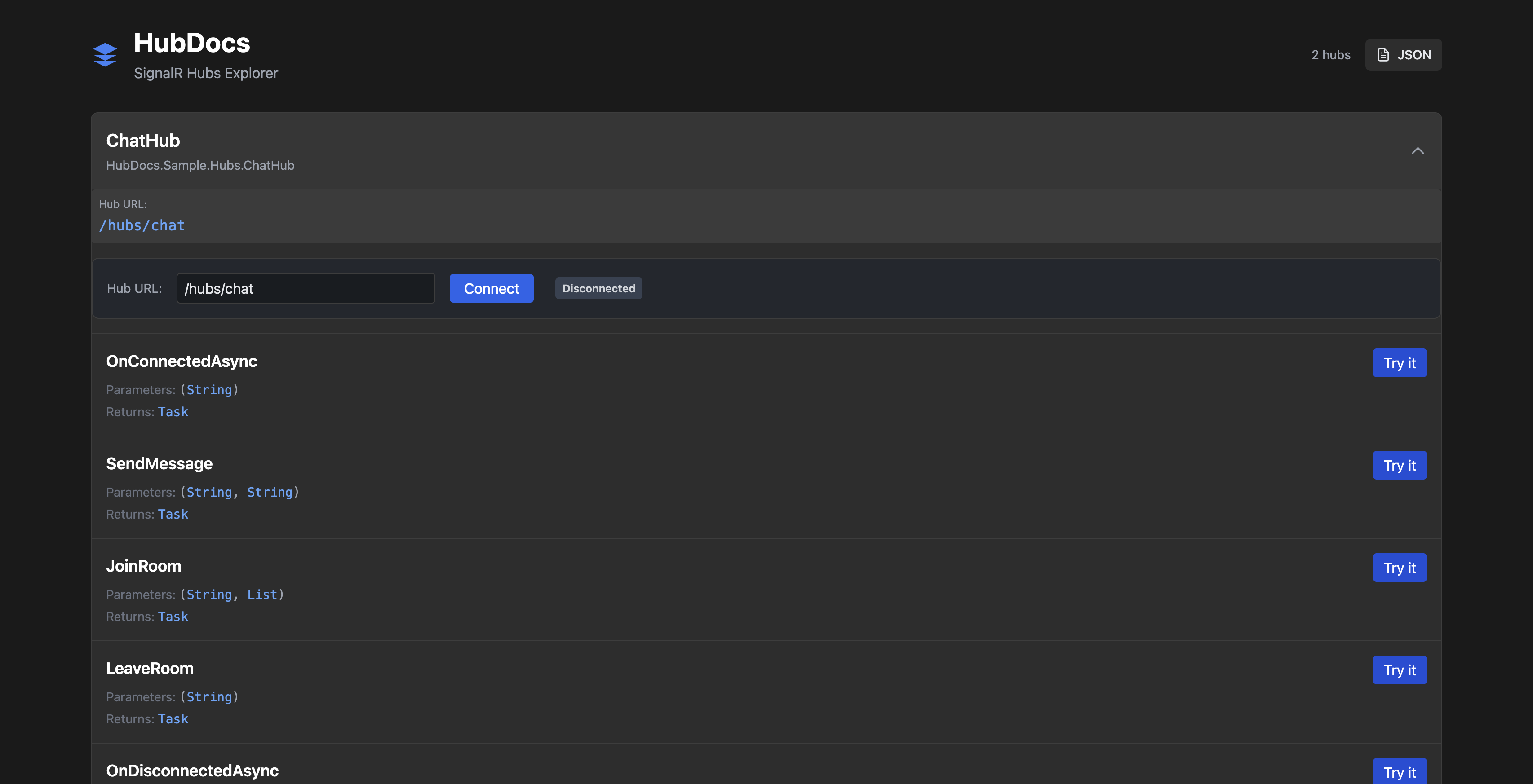
🔍 Interactive method parameter inputs with \"Try it\" support
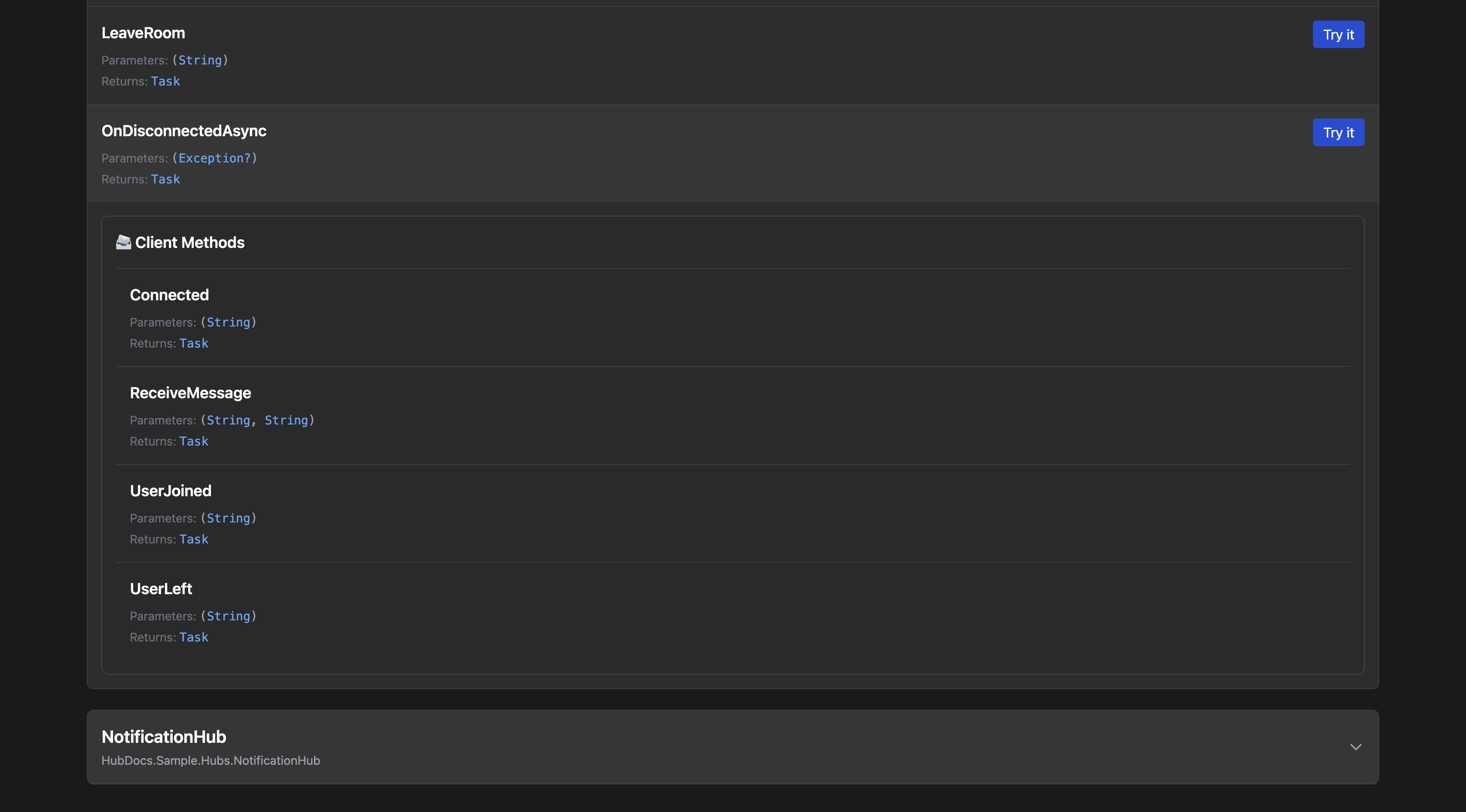
📡 Live client method logging with JSON preview
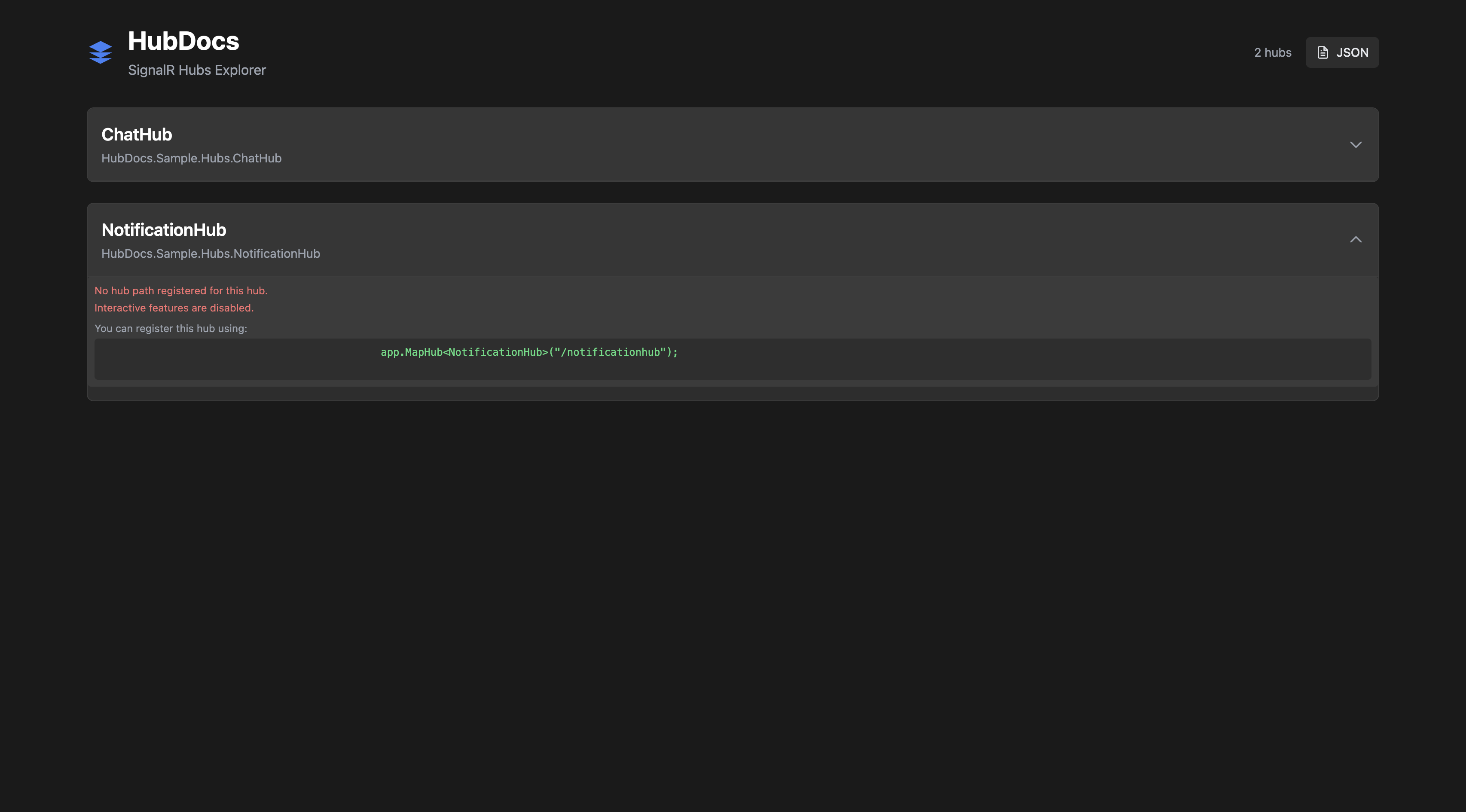
📭 No methods found — HubDocs will show helpful instructions if a hub is registered without a route.
🔍 What You Get
- A dashboard of all registered hubs
- Parameter-aware “Try It” method testers
- Strongly-typed client method preview with JSON payloads
- Live server → client message tracking
Installation
dotnet add package HubDocs
Quick Start
- Add HubDocs to your ASP.NET Core application:
using HubDocs;

var builder = WebApplication.CreateBuilder(args);

// Add SignalR
builder.Services.AddSignalR();

var app = builder.Build();

// Register your SignalR hubs with MapHub
app.MapHub<ChatHub>("/hubs/chat");
app.MapHub<NotificationHub>("/hubs/notifications");

// Add HubDocs - discovers hubs marked with [HubDocs] attribute
app.AddHubDocs();

app.Run();
- Mark your hubs with the
[HubDocs]attribute:
[HubDocs]
public class ChatHub : Hub<IChatClient>
{
    // ... your hub methods
}

[HubDocs]
public class NotificationHub : Hub
{
    // ... your hub methods
}
- Access the HubDocs UI at
/hubdocs/index.htmlor/hubdocs/in your browser.
Example
public interface IChatClient
{
    Task ReceiveMessage(string user, string message);
    Task Connected(string connectionId);
}

[HubDocs]  // Mark hub for documentation
public class ChatHub : Hub<IChatClient>
{
    public async Task SendMessage(string user, string message)
    {
        await Clients.All.ReceiveMessage(user, message);
    }

    public override async Task OnConnectedAsync()
    {
        await Clients.Caller.Connected(Context.ConnectionId);
    }
}
Note: To fully leverage HubDocs, your hubs should implement
Hub<T>with a strongly-typed client interface (T) that defines the client-callable methods. HubDocs will automatically extract and render both hub and client method metadata in the UI.
HubDocs will automatically discover marked hubs and display:
- The hub name and full type name
- The route where the hub is registered
- All public methods with their parameters and return types
- Client methods from the strongly-typed interface
- A beautiful, interactive UI to explore the hub
Configuration
Basic Usage
// Register your hubs
app.MapHub<ChatHub>("/hubs/chat");

// Add HubDocs
app.AddHubDocs();
Scanning Specific Assemblies
If your hubs are in external assemblies, you can specify them:
app.AddHubDocs(typeof(ExternalHub).Assembly);
Document Metadata Options
You can pass metadata (similar to Swagger info) that appears in hubdocs.json and in the HubDocs UI header:
app.AddHubDocs(options =>
{
  options.Title = "My SignalR API";
  options.Version = "1.0.0";
  options.Description = "Realtime messaging API docs.";
  options.ProjectUrl = "https://example.com/project";
  options.TermsOfService = "https://example.com/terms";

  options.Contact.Name = "API Support";
  options.Contact.Email = "support@example.com";
  options.Contact.Url = "https://example.com/support";

  options.License.Name = "MIT";
  options.License.Url = "https://example.com/license";
});
You can combine options with custom assembly scanning:
app.AddHubDocs(options =>
{
  options.Title = "External Hubs API";
  options.Version = "2.0.0";
}, typeof(ExternalHub).Assembly);
Opt-in Documentation
Only hubs marked with [HubDocs] attribute will appear in the documentation UI. This gives you control over which hubs are publicly documented.
Contributing
We welcome contributions! Please feel free to submit a Pull Request. For major changes, please open an issue first to discuss what you would like to change.
- Fork the repository
- Create your feature branch (
git checkout -b feature/amazing-feature) - Commit your changes (
git commit -m 'Add some amazing feature') - Push to the branch (
git push origin feature/amazing-feature) - Open a Pull Request
License
This project is licensed under the MIT License - see the LICENSE file for details.
Acknowledgments
- Inspired by Swagger UI
- Built with ASP.NET Core
- Uses Tailwind CSS for styling
Support
If you find a bug or have a feature request, please open an issue.
Authors
- Mikheil Berishvili - mberrishdev
Contributing
Contributions are what make the open source community such an amazing place to learn, inspire, and create. Any contributions you make are greatly appreciated.
- Fork the Project
- Create your Feature Branch (
git checkout -b feature/AmazingFeature) - Commit your Changes (
git commit -m 'Add some AmazingFeature') - Push to the Branch (
git push origin feature/AmazingFeature) - Open a Pull Request