
File manager > moyangzhan/mango-finder
Search your files using nature language
Mango Finder
🥭 Awake your data



What is Mango Finder?
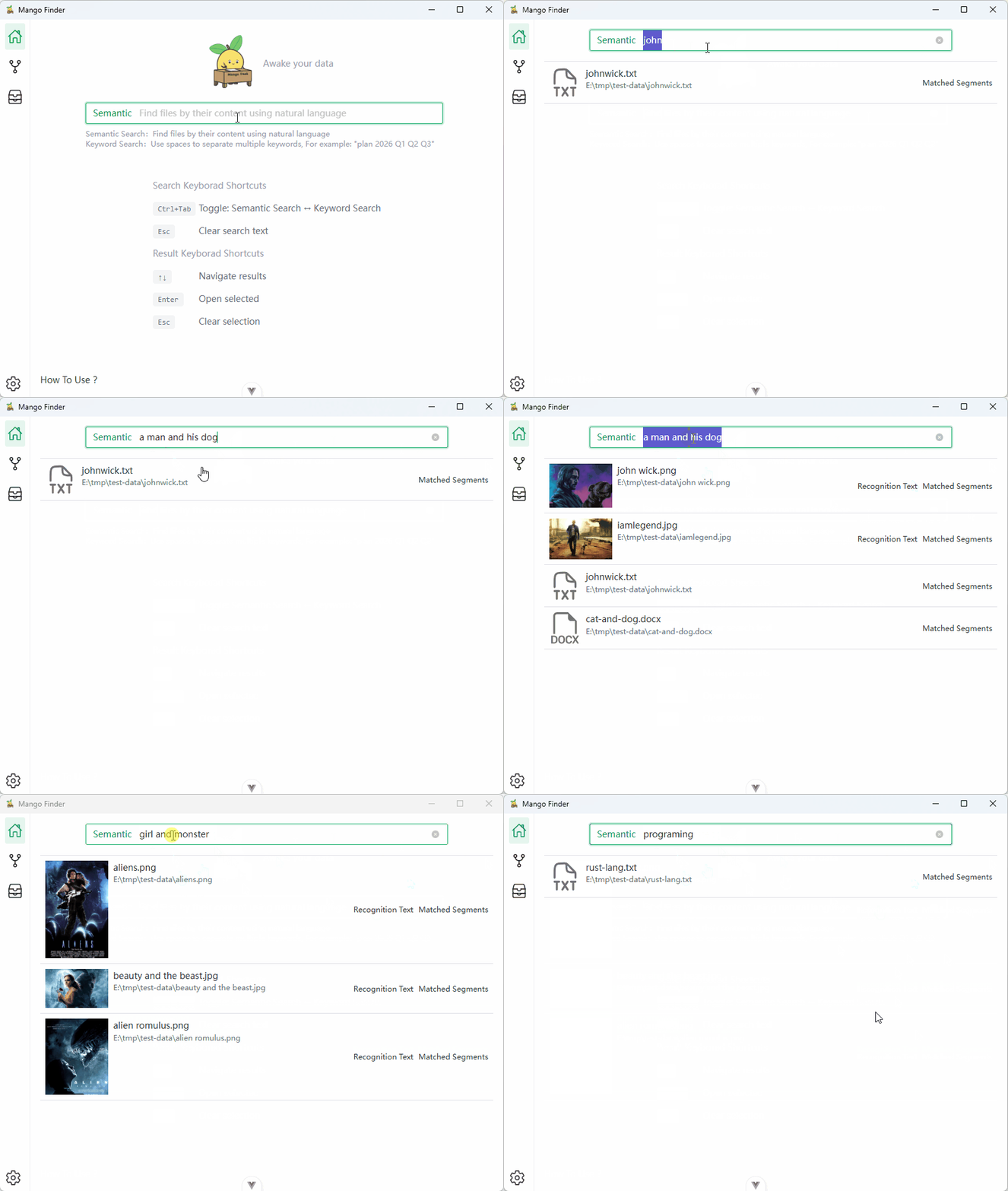
Mango Finder (formerly MangoDesk) is a local-first desktop app for searching your local documents with natural language, with cross-device search support.
It helps you find information based on what you remember, not file names or folder structures.
📌 Use Cases
Intelligent search for documents, images, and audio files across multi-device environments.
- 📝 Personal Document Libraries - PDFs, Word, Markdown and other accumulated files
- 🔗 Multi-Device Environment - Search across NAS, Mac, Linux, Windows on local network
- 🏢 Team Knowledge Base - Internal documents, project docs, meeting notes, etc.
✨ Features
💭 Search by meaning
- Find documents by describing what you remember, even if you don’t recall exact titles or locations
📍 Exact Keyword Match
- Instantly locate files using precise terms from file paths or content, ideal for finding specific phrases or technical strings.
🔍 Find Similar Files
- Find visually similar images using perceptual hashing, semantically similar documents, or audio files with matching content
- One click to discover related files based on visual, semantic, or audio fingerprint similarity
🔗 Cross-Device Search
- Connect multiple devices on your local network to search across all connected devices
- Find files from your other computers without manually transferring them
🌐 Multilingual & Cross-language Search
- Search across 100+ languages seamlessly. Find English documents using Chinese queries, or vice versa, with zero configuration required
🔒 Private by default
- All data stays on your device, ensuring your privacy
🖥️ Self-Hosted Model Support
- Integration with Ollama and vLLM for deploying private model services
- Ideal for team or enterprise intranet environments, data stays within internal network
⚡ Fast and efficient
- Instant search results with optimized indexing system
👀 Real-time file & directory watching
- Automatically detects file and folder changes (add / modify / delete) and keeps index and search results up to date
📂 Works with your existing local files
- No need to reorganize folders or rename files — Mango Finder works with what you already have
🏗️ Architecture
Indexing
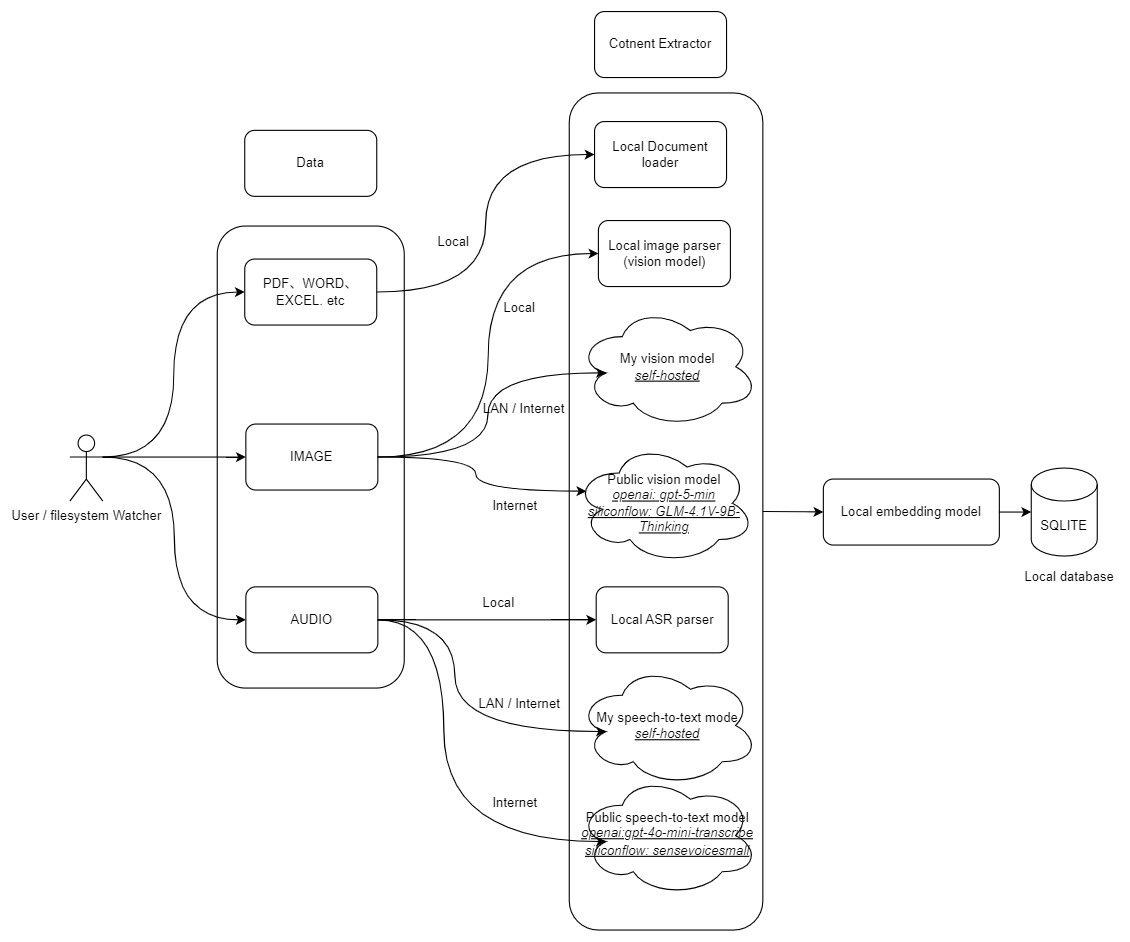
Supports three processing modes: Local (fully offline), Self-Hosted (Ollama/vLLM), and Cloud (remote AI services).
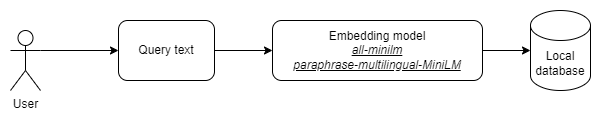
Search
🛠️ Technology Stack
Frontend
- WebView(Tauri)
- PNPM
- Node.js
Backend
- Rust
- Tauri Core
🚀 Setting Up
1. Frontend
Node
node v20+ required
It is recommended to use nvm to manage multiple node versions.
PNPM
pnpm v9+ required
If you haven't installed pnpm, you can install it with the following command:
npm install pnpm -g
Install dependencies
pnpm i
2. Backend(Rust)
rust v1.94.0+ required
Install tools: https://www.rust-lang.org/tools/install
3. Tauri
Install Tauri Prerequisites: https://tauri.app/start/prerequisites/
4. Download Model Files
Download the required model files from one of the following sources:
GitHub Release: model.zip - Contains all required files
Hugging Face: moyangzhan/mango-finder - Manually download the following files:
- *.onnx model files
- *_tokenizer.json tokenizer files
- whisper-small-q8_0.bin
After downloading, extract the files to the src-tauri/assets/model directory.
Required Files:
- embedding.onnx
- embedding_tokenizer.json
- vision.onnx
- vision_tokenizer.json
- whisper-small-q8_0.bin
5. Whisper.cpp Dependencies
The audio transcription feature uses whisper.cpp. Different operating systems require different dependencies.
Windows
Compiling on Windows requires CMake and LLVM/Clang 18 (Note: LLVM 19/20/22 have compatibility issues, please use LLVM 18).
Install CMake 4.3
Download from cmake-4.3.0
Download and Install LLVM 18
- Visit LLVM 18.1.8 Release
- Download
LLVM-18.1.8-win64.exe - Check "Add LLVM to the system PATH for all users" during installation
Verify installation
cmake --version
clang --version
The clang version should show
18.1.8Set environment variables (permanent)
- Press
Win + R, typesysdm.cpl, press Enter - Click "Advanced" tab → "Environment Variables"
- Under "User variables", click "New" and add:
Variable name Value CXXFLAGS/utf-8CFLAGS/utf-8- Click OK and restart your terminal for changes to take effect
- Press
Build the project (first time only)
Open "x64 Native Tools Command Prompt for VS 2022" (search from Start Menu), then build:
cd your-project-path\src-tauri
cargo build
⚠️ Important Notes:
- The
/utf-8flag is required to resolve encoding issues - If previous build failed, run
cargo clean -p whisper-rs-systo clear cache first - After whisper is compiled successfully, subsequent builds can use
pnpm tauri devdirectly in any terminal - VSCode's rust-analyzer plugin auto-checks code on startup. Without MSVC environment, whisper-rs-sys build will fail and show as red in
target/debug/builddirectory. If you've successfully built in "x64 Native Tools Command Prompt for VS 2022", you can ignore this error
- The
macOS
Install Xcode Command Line Tools (if not already installed):
xcode-select --installInstall CMake:
brew install cmakeSet environment variables (required for Apple Silicon):
For Apple Silicon Macs (M1/M2/M3), you need to set the following environment variables:
Variable Value Purpose CFLAGS-U__ARM_FEATURE_MATMUL_INT8Avoid whisper.cpp compilation issues on ARM MACOSX_DEPLOYMENT_TARGET10.15Set minimum supported macOS version (Catalina) Temporary (current terminal session):
export CFLAGS="-U__ARM_FEATURE_MATMUL_INT8"
export MACOSX_DEPLOYMENT_TARGET="10.15"
Permanent (add to your shell config):
# For zsh (default on macOS)
echo 'export CFLAGS="-U__ARM_FEATURE_MATMUL_INT8"' >> ~/.zshrc
echo 'export MACOSX_DEPLOYMENT_TARGET="10.15"' >> ~/.zshrc
source ~/.zshrc

# For bash
echo 'export CFLAGS="-U__ARM_FEATURE_MATMUL_INT8"' >> ~/.bash_profile
echo 'export MACOSX_DEPLOYMENT_TARGET="10.15"' >> ~/.bash_profile
source ~/.bash_profile
Add Rust target:
rustup target add aarch64-apple-darwinBuild:
pnpm tauri build
# Or explicitly specify target
pnpm tauri build --target aarch64-apple-darwin
Note: The minimum supported macOS version is 10.15 (Catalina).
Linux
Most Linux distributions require C/C++ build tools:
Ubuntu/Debian:
sudo apt update
sudo apt install build-essential cmake
Fedora/RHEL:
sudo dnf install gcc-c++ make cmake
Arch Linux:
sudo pacman -S base-devel cmake
🚀 Getting Started
▶️ Development Run
A Tauri app has at least two processes:
- the Core Process (
backend) - the WebView process (
frontend)
Both backend and frontend start with a single command:
pnpm tauri dev
📦 Building
pnpm tauri build
After building, the executable file is usually located in src-tauri/target/release/.
windows: src-tauri/target/release/bundle/msi/Mango Finder_0.1.0_x64_en-US.msi
❓ FAQ
Q: How does Mango Finder ensure data privacy?
A: Mango Finder follows a local-first architecture to ensure data privacy:
Local Data Processing
- All document indexing and search operations are performed locally on your device
- By default, all features run completely offline without network dependency
- Remote models are only used for image and audio processing when users manually enable remote model services
Data storage
- All user data remains on the local device by default
Architecture Details
As shown in the architecture diagram above, the entire processing pipeline is designed to keep data local, ensuring maximum privacy and security.
Q: Why are so many models used in the code?
A: The codebase includes multiple models serving different purposes:
1. Active Local Models (Enabled by Default)
src-tauri/assets/model/*- These models run locally on users' computers for document, image, and audio processing
- Prioritized for privacy and performance
2. Self-Hosted Models (Optional)
- Deploy private model services via Ollama or vLLM
- Ideal for teams or enterprises sharing models internally
- Data stays within the internal network, ensuring enterprise-level privacy
3. Remote Models (Optional)
gpt-5-miniandgpt-4o-mini-transcribe- Designed for image and audio parsing
- Disabled by default, can be enabled if needed
- Note: We plan to replace these with local alternatives when available
3. Reserved Models (Future Features)
qwen-turbo,deepseek-chat, anddeepseek-reasonerPrepared for upcoming features like:
- Knowledge graph generation
- Advanced document analysis
Also serves as a foundation for developers who want to customize with these models
Maintains flexibility for future feature expansion
Q: Why can't I discover other devices on my local network when using the multi-device feature?
A: Prerequisites for using the multi-device feature:
- All devices are connected to the same local network
- All devices have Mango Finder running with the multi-device feature enabled
The multi-device feature relies on the mDNS protocol for device discovery. The following situations may prevent devices from being discovered:
Common Causes
Network Isolation
- Some routers or network environments have "AP Isolation" or "Client Isolation" enabled
- This blocks direct communication between devices on the same network
- Solution: Log into your router's admin interface and disable "AP Isolation" or similar options
Firewall Restrictions
- Windows Firewall or third-party security software may block inbound connections
- Solution: Allow Mango Finder through the firewall, or temporarily disable the firewall for testing
Different Subnets
- Devices connected to different subnets (e.g., 2.4GHz and 5GHz bands sometimes get assigned different subnets)
- Solution: Ensure all devices are connected to the same subnet
Port Already in Use
- The default port 15678 is occupied by another program
- Solution: Change to a different port in Multi-Device Settings
Diagnostic Steps
Test Network Connectivity
# On device A, ping device B's IP address
ping 192.168.1.xxx
If ping fails, there's a network isolation issue.
Check Port
# Test if the target device's HTTP service is reachable
curl http://192.168.1.xxx:7890/ping
Check Firewall
- Windows: Control Panel → Windows Defender Firewall → Allow an app through firewall
- macOS: System Preferences → Security & Privacy → Firewall
Add Device Manually
- If auto-discovery still doesn't work, you can click "Add Device" in the device list and manually enter the IP and port
📝 License
see the LICENSE file for details.
🤝 Contributing
Contributions of all kinds are welcome, including but not limited to:
- 🐛 Reporting bugs
- 💡 Suggesting new features or improvements
- 📖 Improving documentation
- 🔧 Submitting code (pull requests)
Before submitting a pull request, please consider:
- Fork this repository
- Create a new branch (git checkout -b feature/xxx)
- Ensure pnpm tauri dev runs successfully locally
- Commit changes (git commit -m 'feat: xxx')
- Push the branch (git push origin feature/xxx)
- Submit a Pull Request
⭐ Support the Project
Support Mango Finder if you find it helpful:
- Starring the repository on GitHub
- Recommending it to others
- Sharing your experience