
vue-awesome-button
Vue 3D button components with progress states, social sharing, themes, and animated transitions.
Vue <AwesomeButton /> UI Components
@rcaferati/vue-awesome-button provides three related Vue 3 button components:
AwesomeButton- animated base buttonAwesomeButtonProgress- progress flow wrapper on top ofAwesomeButtonAwesomeButtonSocial- social/share wrapper on top ofAwesomeButton
This README is updated for the current 1.0.1 release outputs, including base CSS, bundled theme CSS files, Vue slots, emits, and plugin registration.
Preview
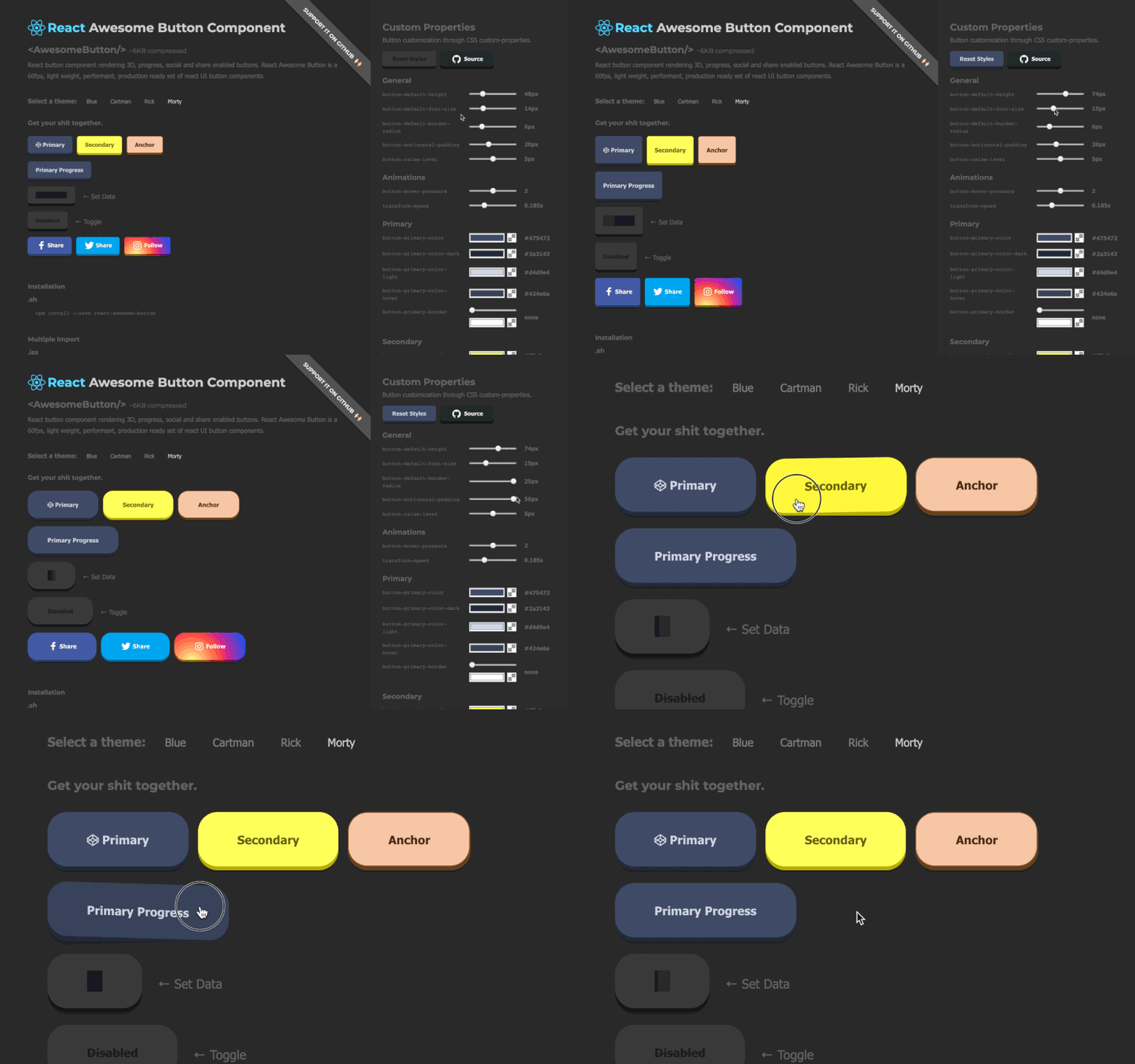
Installation
npm install @rcaferati/vue-awesome-button
Quick Start
Import the base stylesheet once, import any theme CSS files you want to use, then render a button with the matching theme prop.
<script setup lang="ts">
import { AwesomeButton } from '@rcaferati/vue-awesome-button';
import '@rcaferati/vue-awesome-button/styles.css';
import '@rcaferati/vue-awesome-button/themes/theme-blue.css';
</script>

<template>
  <AwesomeButton theme="blue" type="primary">
    Button
  </AwesomeButton>
</template>
Styling With Theme CSS
The Vue package does not use theme mapping objects. Themes are plain CSS files scoped by the theme prop.
Blue theme example
import '@rcaferati/vue-awesome-button/styles.css';
import '@rcaferati/vue-awesome-button/themes/theme-blue.css';
<AwesomeButton theme="blue" type="primary">
  Button
</AwesomeButton>
Multiple themes in the same app
Import each theme CSS file once, then switch themes per button instance.
import '@rcaferati/vue-awesome-button/styles.css';
import '@rcaferati/vue-awesome-button/themes/theme-blue.css';
import '@rcaferati/vue-awesome-button/themes/theme-rickiest.css';
<template>
  <AwesomeButton theme="blue" type="primary">
    Blue
  </AwesomeButton>

  <AwesomeButton theme="rickiest" type="secondary">
    Rickiest
  </AwesomeButton>
</template>
Bundled themes
theme-amber.csstheme-blue.csstheme-bojack.csstheme-bruce.csstheme-c137.csstheme-eric.csstheme-flat.csstheme-indigo.csstheme-red.csstheme-rickiest.css
Plugin Registration
Use the plugin if you want global component registration.
import { createApp } from 'vue';
import App from './App.vue';
import { AwesomeButtonPlugin } from '@rcaferati/vue-awesome-button';
import '@rcaferati/vue-awesome-button/styles.css';
import '@rcaferati/vue-awesome-button/themes/theme-blue.css';

createApp(App).use(AwesomeButtonPlugin).mount('#app');
After registration, AwesomeButton, AwesomeButtonProgress, and AwesomeButtonSocial are available in templates without local imports.
AwesomeButton
Basic button behavior
If href is not provided, AwesomeButton renders button-like behavior and emits press on successful activation.
<script setup lang="ts">
import { AwesomeButton } from '@rcaferati/vue-awesome-button';
import '@rcaferati/vue-awesome-button/styles.css';
import '@rcaferati/vue-awesome-button/themes/theme-blue.css';

function handleSave() {
  // do something
}
</script>

<template>
  <AwesomeButton theme="blue" type="primary" @press="handleSave">
    Save changes
  </AwesomeButton>
</template>
Anchor mode (href provided)
If href is provided, the component renders anchor-like behavior and lets native navigation happen. Normal Vue attrs are forwarded to the root element.
<script setup lang="ts">
import { AwesomeButton } from '@rcaferati/vue-awesome-button';
import '@rcaferati/vue-awesome-button/styles.css';
import '@rcaferati/vue-awesome-button/themes/theme-blue.css';
</script>

<template>
  <AwesomeButton
    theme="blue"
    type="link"
    href="https://github.com/rcaferati"
    target="_blank"
    rel="noreferrer noopener"
  >
    Open website
  </AwesomeButton>
</template>
Icons with slots
Use before and after slots to render icons. For icon-only buttons, pass the icon with a named slot and omit default slot text.
<script setup lang="ts">
import { AwesomeButton } from '@rcaferati/vue-awesome-button';
import '@rcaferati/vue-awesome-button/styles.css';
import '@rcaferati/vue-awesome-button/themes/theme-blue.css';
</script>

<template>
  <div style="display: grid; gap: 12px;">
    <AwesomeButton theme="blue" type="primary" size="medium">
      <template #before>
        <svg aria-hidden="true" viewBox="0 0 24 24" width="16" height="16">
          <path d="M12 3l1.9 4.8L19 9.2l-4 3.4 1.3 5.2L12 15l-4.3 2.8L9 12.6 5 9.2l5.1-1.4L12 3z" />
        </svg>
      </template>

      Continue

      <template #after>
        <svg aria-hidden="true" viewBox="0 0 24 24" width="16" height="16">
          <path d="M5 12h14" />
          <path d="m13 5 7 7-7 7" />
        </svg>
      </template>
    </AwesomeButton>

    <AwesomeButton theme="blue" type="primary" size="medium" aria-label="Play">
      <template #before>
        <svg aria-hidden="true" viewBox="0 0 24 24" width="16" height="16">
          <path d="M8 5v14l11-7z" />
        </svg>
      </template>
    </AwesomeButton>
  </div>
</template>
Sizes and auto width
size="small" | "medium" | "large"uses fixed button dimensions.:size="null"uses content-driven auto width.- Fixed-size changes and measured auto-width changes animate by default. Use
:animate-size="false"to opt out. - Switching between fixed size and auto width is intentionally instant in this release.
<script setup lang="ts">
import { AwesomeButton } from '@rcaferati/vue-awesome-button';
import '@rcaferati/vue-awesome-button/styles.css';
import '@rcaferati/vue-awesome-button/themes/theme-blue.css';
</script>

<template>
  <div style="display: grid; gap: 12px;">
    <AwesomeButton theme="blue" size="small" type="primary">
      Small
    </AwesomeButton>
    <AwesomeButton theme="blue" size="medium" type="primary">
      Medium
    </AwesomeButton>
    <AwesomeButton theme="blue" size="large" type="primary">
      Large
    </AwesomeButton>
    <AwesomeButton theme="blue" :size="null" type="primary">
      Auto width grows with content
    </AwesomeButton>
    <AwesomeButton theme="blue" size="large" type="primary" :animate-size="false">
      Instant fixed-size change
    </AwesomeButton>
  </div>
</template>
Text transition (string labels only)
Use text-transition when the default slot resolves to a plain string and you want label changes to animate.
<script setup lang="ts">
import { ref } from 'vue';
import { AwesomeButton } from '@rcaferati/vue-awesome-button';
import '@rcaferati/vue-awesome-button/styles.css';

const expanded = ref(false);
</script>

<template>
  <AwesomeButton
    type="primary"
    :size="null"
    text-transition
    @press="expanded = !expanded"
  >
    {{ expanded ? 'Processing settlement report' : 'Generate report' }}
  </AwesomeButton>
</template>
AwesomeButton Slots, Emits, and Props
Slots
| Slot | Description |
|---|---|
before |
Content rendered before the main label, commonly an icon |
| default | Main label/content |
after |
Content rendered after the main label, commonly an icon |
extra |
Extra wrapper content used by wrappers such as progress |
Emits
| Emit | Payload | Description |
|---|---|---|
press |
MouseEvent | KeyboardEvent | PointerEvent |
Successful activation/release |
pressed |
MouseEvent | KeyboardEvent | PointerEvent |
Press-in interaction started |
released |
HTMLElement | null |
Release cycle cleared |
Props
| Prop | Type | Default | Description |
|---|---|---|---|
type |
string |
"primary" |
Visual variant key, such as primary, secondary, danger, link, or a social visual variant |
size |
"small" | "medium" | "large" | null |
"medium" |
Size key or null for auto width |
active |
boolean |
false |
Controlled pressed/active visual state |
disabled |
boolean |
false |
Disables interactions |
visible |
boolean |
true |
Toggles visible state class |
placeholder |
boolean |
false |
Renders placeholder/skeleton state |
animateSize |
boolean |
true |
Animates fixed-size and measured auto-width changes |
textTransition |
boolean |
false |
Animates string-only label changes |
between |
boolean |
false |
Uses space-between layout for content |
ripple |
boolean |
false |
Enables ripple effect on successful activation |
moveEvents |
boolean |
true |
Enables pointer move position classes |
href |
string | null |
null |
Enables anchor-like mode |
as |
string | Component |
"button" |
Root element/component when href is not set |
theme |
ThemeName | null |
null |
Applies a bundled theme marker class, such as blue |
Normal Vue attrs such as class, style, aria-*, target, and rel are forwarded to the rendered root element.
AwesomeButtonProgress
AwesomeButtonProgress wraps AwesomeButton and manages a guarded progress lifecycle. Its press emit receives a second callback argument:
next(true)starts the success flownext(false, 'Failed')starts the error flow with an optional label override
Basic success flow
<script setup lang="ts">
import { AwesomeButtonProgress } from '@rcaferati/vue-awesome-button';
import '@rcaferati/vue-awesome-button/styles.css';
import '@rcaferati/vue-awesome-button/themes/theme-blue.css';

const sleep = (ms: number) => new Promise((resolve) => window.setTimeout(resolve, ms));

async function handleVerify(
  _event: MouseEvent | KeyboardEvent | PointerEvent,
  next: (endState?: boolean, errorLabel?: string | null) => void
) {
  await sleep(900);
  next(true);
}
</script>

<template>
  <AwesomeButtonProgress
    theme="blue"
    type="primary"
    loading-label="Verifying..."
    result-label="Verified!"
    :release-delay="500"
    @press="handleVerify"
  >
    Verify
  </AwesomeButtonProgress>
</template>
Error flow
<script setup lang="ts">
import { AwesomeButtonProgress } from '@rcaferati/vue-awesome-button';
import '@rcaferati/vue-awesome-button/styles.css';

const sleep = (ms: number) => new Promise((resolve) => window.setTimeout(resolve, ms));

async function handlePublish(
  _event: MouseEvent | KeyboardEvent | PointerEvent,
  next: (endState?: boolean, errorLabel?: string | null) => void
) {
  await sleep(900);
  next(false, 'Failed');
}
</script>

<template>
  <AwesomeButtonProgress
    type="danger"
    loading-label="Publishing..."
    result-label="Done!"
    @press="handlePublish"
  >
    Publish
  </AwesomeButtonProgress>
</template>
Text-only progress and custom bar timing
Use :show-progress-bar="false" to keep the loading/result text flow while hiding the dark loading bar. Use progress-loading-time to control how long the progress bar takes to advance during the loading phase.
<script setup lang="ts">
import { AwesomeButtonProgress } from '@rcaferati/vue-awesome-button';
import '@rcaferati/vue-awesome-button/styles.css';

const sleep = (ms: number) => new Promise((resolve) => window.setTimeout(resolve, ms));

async function handleSync(
  _event: MouseEvent | KeyboardEvent | PointerEvent,
  next: (endState?: boolean, errorLabel?: string | null) => void
) {
  await sleep(900);
  next(true);
}
</script>

<template>
  <AwesomeButtonProgress
    type="primary"
    loading-label="Syncing..."
    result-label="Synced!"
    :show-progress-bar="false"
    :progress-loading-time="1500"
    @press="handleSync"
  >
    Sync account
  </AwesomeButtonProgress>
</template>
With icon (before slot)
<script setup lang="ts">
import { AwesomeButtonProgress } from '@rcaferati/vue-awesome-button';
import '@rcaferati/vue-awesome-button/styles.css';
import '@rcaferati/vue-awesome-button/themes/theme-blue.css';

const sleep = (ms: number) => new Promise((resolve) => window.setTimeout(resolve, ms));

async function handleVerify(
  _event: MouseEvent | KeyboardEvent | PointerEvent,
  next: (endState?: boolean, errorLabel?: string | null) => void
) {
  await sleep(900);
  next(true);
}
</script>

<template>
  <AwesomeButtonProgress
    theme="blue"
    type="primary"
    size="medium"
    loading-label="Verifying..."
    result-label="Verified!"
    @press="handleVerify"
  >
    <template #before>
      <svg aria-hidden="true" viewBox="0 0 24 24" width="16" height="16">
        <path d="M12 2l8 4v6c0 5-3.4 8.7-8 10-4.6-1.3-8-5-8-10V6l8-4z" />
      </svg>
    </template>

    Verify signature
  </AwesomeButtonProgress>
</template>
AwesomeButtonProgress specific props
AwesomeButtonProgress accepts all AwesomeButton props except public active, and replaces the base press payload with the progress version below.
| Prop | Type | Default | Description |
|---|---|---|---|
loadingLabel |
string |
"Wait.." |
Loading phase label |
resultLabel |
string |
"Success!" |
Success label |
releaseDelay |
number |
500 |
Delay before reset after progress end |
showProgressBar |
boolean |
true |
Hides the dark loading bar when false, while keeping the progress flow |
progressLoadingTime |
number |
6000 |
Loading-phase progress bar duration in milliseconds |
@press |
(event, next) => void |
- | Progress handler. Call next(true) or next(false, label?) |
AwesomeButtonSocial
AwesomeButtonSocial wraps AwesomeButton and builds a share action when no custom press listener is provided.
Behavior summary
On activation, the component behaves like this:
- If you listen to
@press, your handler is called and the built-in sharer logic is skipped - If
hrefis provided, the forwarded base anchor still navigates normally - If there is no
hrefand no custom sharer override, mobile-capable environments attemptnavigator.share(...) - Otherwise, the built-in sharer uses a type-specific web share URL, direct URL, or centered popup where supported
If you want a pure custom action with no native navigation, avoid combining @press with href.
Basic share example (LinkedIn)
<script setup lang="ts">
import { AwesomeButtonSocial } from '@rcaferati/vue-awesome-button';
import '@rcaferati/vue-awesome-button/styles.css';
import '@rcaferati/vue-awesome-button/themes/theme-blue.css';
</script>

<template>
  <AwesomeButtonSocial
    theme="blue"
    type="linkedin"
    :size="null"
    :sharer="{
      url: 'https://example.com',
      message: 'Check this out'
    }"
  >
    <template #before>
      <svg aria-hidden="true" viewBox="0 0 24 24" width="16" height="16">
        <path d="M4 3.5A2.5 2.5 0 1 1 4 8.5a2.5 2.5 0 0 1 0-5zM2 10h4v11H2V10zm7 0h4v1.6c.6-1 1.9-1.9 3.9-1.9 4.2 0 5 2.8 5 6.4V21h-4v-4.4c0-2.1 0-3.8-2.3-3.8-2.3 0-2.6 1.8-2.6 3.7V21H9V10z" />
      </svg>
    </template>

    LinkedIn
  </AwesomeButtonSocial>
</template>
Visual-only social style (GitHub look, link behavior)
github is a visual style in the bundled themes. If you want a GitHub-looking button that opens a profile or repo, use href.
<script setup lang="ts">
import { AwesomeButtonSocial } from '@rcaferati/vue-awesome-button';
import '@rcaferati/vue-awesome-button/styles.css';
import '@rcaferati/vue-awesome-button/themes/theme-blue.css';
</script>

<template>
  <AwesomeButtonSocial
    theme="blue"
    type="github"
    href="https://github.com/rcaferati"
    target="_blank"
    rel="noreferrer noopener"
  >
    <template #before>
      <svg aria-hidden="true" viewBox="0 0 24 24" width="16" height="16">
        <path d="M12 .5a12 12 0 0 0-3.8 23.4c.6.1.8-.3.8-.6v-2c-3.3.7-4-1.4-4-1.4-.6-1.4-1.3-1.8-1.3-1.8-1.1-.7.1-.7.1-.7 1.2.1 1.8 1.2 1.8 1.2 1.1 1.8 2.8 1.3 3.5 1 .1-.8.4-1.3.8-1.6-2.7-.3-5.5-1.3-5.5-5.9 0-1.3.5-2.4 1.2-3.2-.1-.3-.5-1.5.1-3.2 0 0 1-.3 3.3 1.2a11.5 11.5 0 0 1 6 0c2.3-1.5 3.3-1.2 3.3-1.2.7 1.7.2 2.9.1 3.2.8.8 1.2 1.9 1.2 3.2 0 4.6-2.8 5.6-5.5 5.9.4.4.8 1.1.8 2.2v3.3c0 .3.2.7.8.6A12 12 0 0 0 12 .5z" />
      </svg>
    </template>

    Open GitHub
  </AwesomeButtonSocial>
</template>
WhatsApp example
<script setup lang="ts">
import { AwesomeButtonSocial } from '@rcaferati/vue-awesome-button';
import '@rcaferati/vue-awesome-button/styles.css';
</script>

<template>
  <AwesomeButtonSocial
    type="whatsapp"
    :sharer="{
      phone: '5511999999999',
      message: 'Hello from AwesomeButton',
      url: 'https://example.com'
    }"
  >
    WhatsApp
  </AwesomeButtonSocial>
</template>
Instagram-style button (direct URL fallback)
instagram is treated as a direct URL fallback. It does not use a dedicated web popup sharer endpoint.
<script setup lang="ts">
import { AwesomeButtonSocial } from '@rcaferati/vue-awesome-button';
import '@rcaferati/vue-awesome-button/styles.css';
</script>

<template>
  <AwesomeButtonSocial
    type="instagram"
    :sharer="{
      url: 'https://example.com',
      message: 'Open this link'
    }"
  >
    Instagram
  </AwesomeButtonSocial>
</template>
href mode (bypass sharer logic)
If href is present, the component behaves like an anchor and does not execute the built-in share flow.
<script setup lang="ts">
import { AwesomeButtonSocial } from '@rcaferati/vue-awesome-button';
import '@rcaferati/vue-awesome-button/styles.css';
</script>

<template>
  <AwesomeButtonSocial
    type="github"
    href="https://github.com/rcaferati"
    target="_blank"
    rel="noreferrer noopener"
  >
    Open GitHub
  </AwesomeButtonSocial>
</template>
AwesomeButtonSocial specific props
AwesomeButtonSocial accepts all AwesomeButton props and adds the props below.
| Prop | Type | Default | Description |
|---|---|---|---|
sharer |
SharerConfig |
{} |
Share payload source, with page metadata fallbacks where available |
dimensions |
{ width: number; height: number } |
{ width: 640, height: 480 } |
Popup window dimensions for share flows |
sharer.url |
string |
current page URL | URL to share, falling back to window.location.href |
sharer.message |
string |
page title | Share message/text, falling back to document.title |
sharer.image |
string |
og:image meta |
Image URL used by supported sharers, such as Pinterest |
sharer.phone |
string |
null |
Phone for WhatsApp |
sharer.user |
string |
null |
Username for Messenger direct flow |
Supported share type values
The built-in sharer recognizes:
facebooktwitterpinterestlinkedinredditwhatsappmessengermailinstagram
You can use other type values as visual styles if the CSS includes them. The bundled visual-only social styles include github, gplus, and youtube.
Recommended Patterns
Icon-only buttons
Use a named icon slot and omit default slot text. Add an accessible label through normal Vue attrs.
<AwesomeButton type="primary" aria-label="Play">
  <template #before>
    <svg aria-hidden="true" viewBox="0 0 24 24" width="16" height="16">
      <path d="M8 5v14l11-7z" />
    </svg>
  </template>
</AwesomeButton>
Progress buttons
Use the progress @press contract and call next(true) or next(false, label?) when the work completes.
import type { ProgressNext } from '@rcaferati/vue-awesome-button';

async function save(_event: MouseEvent | KeyboardEvent | PointerEvent, next: ProgressNext) {
  try {
    await saveRecord();
    next(true);
  } catch {
    next(false, 'Failed');
  }
}
Social buttons
Use slots for icons. The social component does not require bundled icons to work.
Package Exports
@rcaferati/vue-awesome-button@rcaferati/vue-awesome-button/AwesomeButton@rcaferati/vue-awesome-button/AwesomeButtonProgress@rcaferati/vue-awesome-button/AwesomeButtonSocial@rcaferati/vue-awesome-button/plugin@rcaferati/vue-awesome-button/styles.css@rcaferati/vue-awesome-button/themes/theme-amber.css@rcaferati/vue-awesome-button/themes/theme-blue.css@rcaferati/vue-awesome-button/themes/theme-bojack.css@rcaferati/vue-awesome-button/themes/theme-bruce.css@rcaferati/vue-awesome-button/themes/theme-c137.css@rcaferati/vue-awesome-button/themes/theme-eric.css@rcaferati/vue-awesome-button/themes/theme-flat.css@rcaferati/vue-awesome-button/themes/theme-indigo.css@rcaferati/vue-awesome-button/themes/theme-red.css@rcaferati/vue-awesome-button/themes/theme-rickiest.css
Author
Rafael Caferati
Website: https://caferati.dev
LinkedIn: https://linkedin.com/in/rcaferati
Instagram: https://instagram.com/rcaferati
License
MIT