
Editor support for VS2022
IntelliSense, linting, sorting, and more in Visual Studio 2022.
# Tailwind CSS for Visual Studio
Bring IntelliSense, linting, class sorting, build tools, and more to Tailwind CSS in Visual Studio 2026 and 2022.
Note: This extension best supports Tailwind CSS v3+.
Changelog
For information on recent updates, see the changelog.
Disclaimer
This is not an official Tailwind CSS extension and has no affiliation with Tailwind Labs Inc.
Prerequisites
This extension uses npm and node, so you should have them installed.
To check whether npm is installed, run npm -v in the terminal.
If you do not have npm installed, follow the official install guide from the npm docs.
Setup
The extension activates when:
- Your solution contains a
tailwind.config.{js,cjs,mjs,ts,cts,mts}file for Tailwind v3, or - You are using Tailwind v4 and importing it in a
.cssfile with@import "tailwindcss"
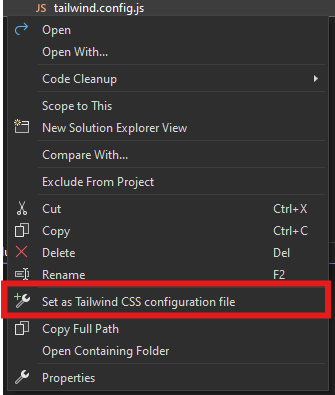
If the config file is not detected, right-click it in Solution Explorer and select Set as configuration file.
Features
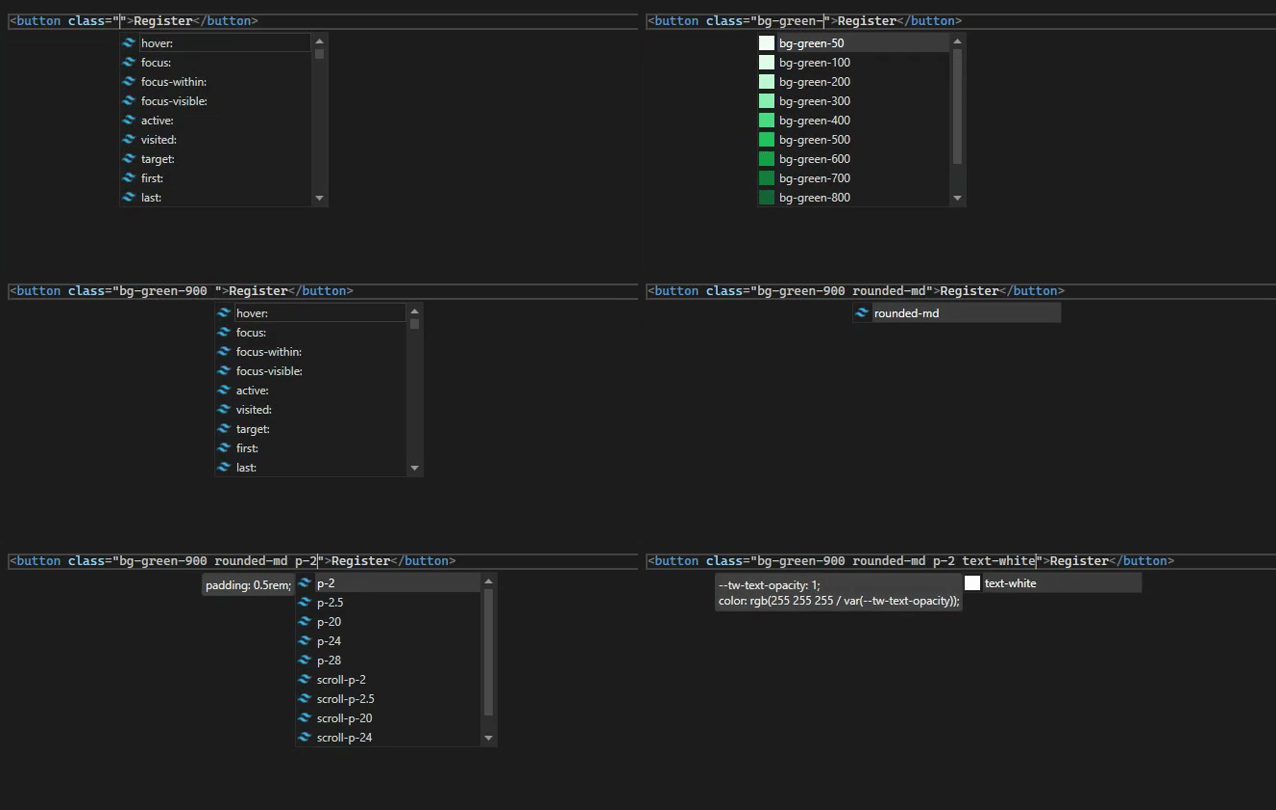
IntelliSense
Get Tailwind class suggestions in Razor, HTML, and CSS files:
Linting
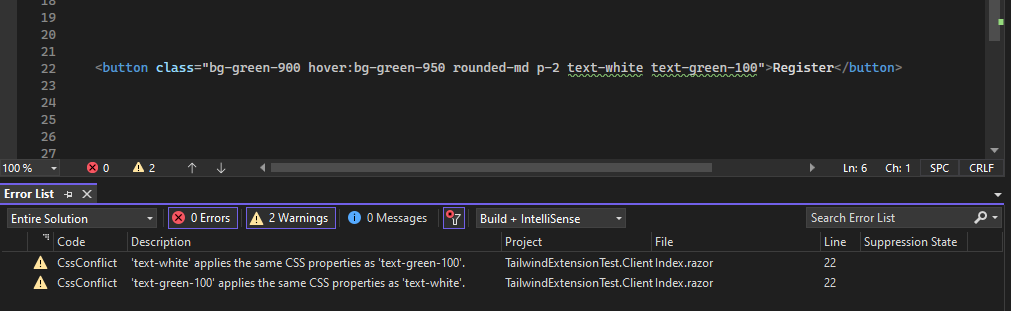
Automatically flags:
- Conflicting classes
- Invalid
theme(),screen(), or@tailwindusage
Note: Visual Studio might still flag some Tailwind features like @apply as errors. Extensions cannot override these tags.
Class Sorting
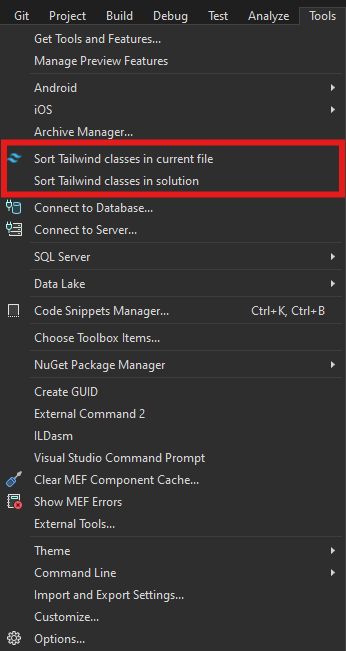
Sort Tailwind classes:
- Automatically on save or build
- Manually from the Tools menu

Build Integration
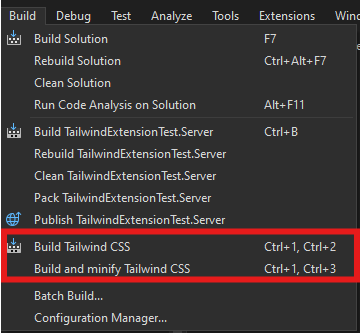
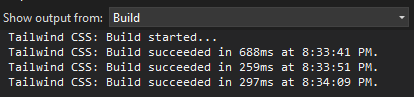
The extension can build your Tailwind CSS output when you build your project, or manually from the Build menu.
- Make sure your input and output CSS files are defined
- Output and errors appear in the Build output window
To configure build and configuration files, right-click .js, .ts, or .css files:
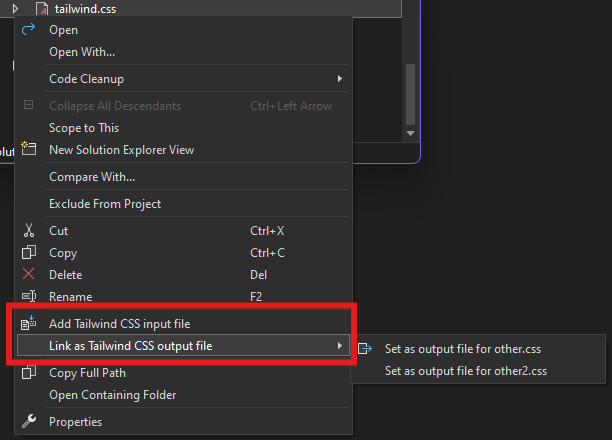
Project-specific settings are saved in a tailwind.extension.json file in your project root.
NPM Integration
Start quickly by right-clicking your project and selecting a startup task:
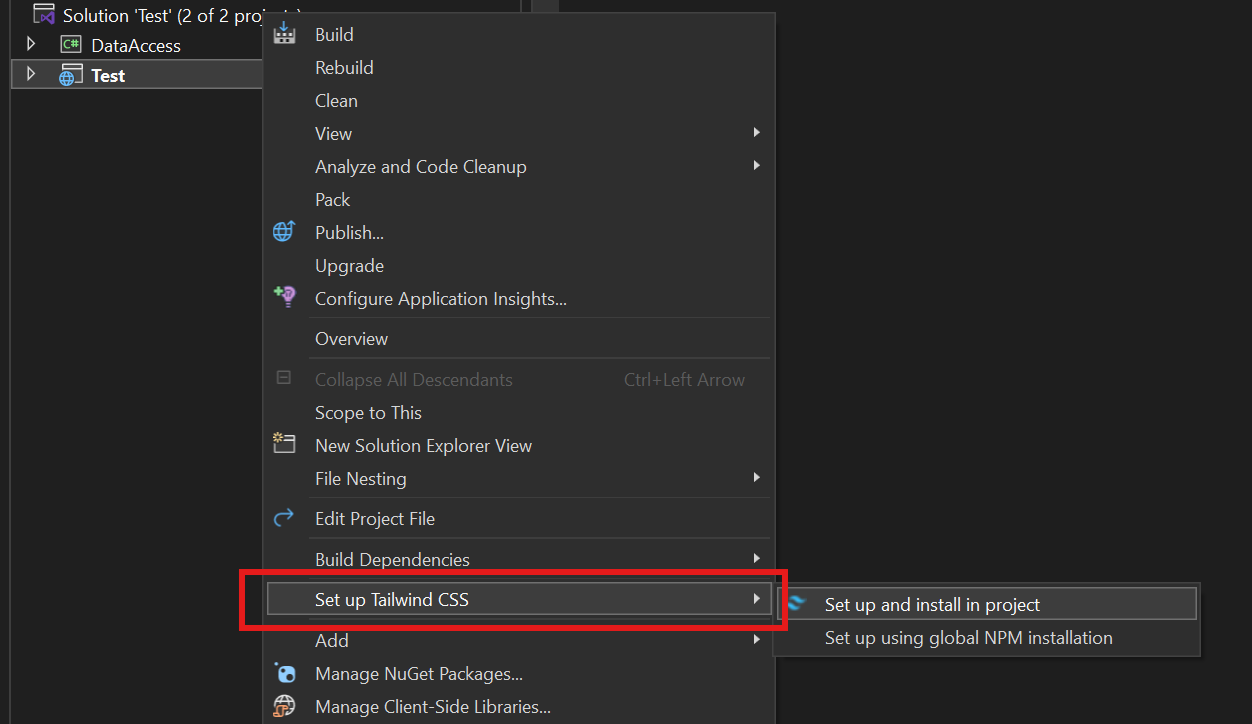
Using the Tailwind CLI?
- Set its path under Tools > Options > Tailwind CSS IntelliSense > Tailwind CLI path
- Click Set up Tailwind CSS (use CLI)
Want to use a custom build script?
- Define it in your
package.json - Set the script name in the extension options (
npm run your-script-name)
Extension Options
Find global extension settings in:
Tools > Options > Tailwind CSS IntelliSense
More details: Getting Started – Extension Configuration
Troubleshooting
Build Issues
If your CSS is not updating:
- Check the Build output window for Tailwind errors.

Extension Issues
If the extension crashes or behaves unexpectedly:
- Check the Extensions output window for detailed logs.
Support
To report issues or share feature suggestions, feel free to create an issue on GitHub.
If this extension has helped you, please consider leaving a small donation to support development!